Sample Applications
The J-Link sample applications are available in the location <creo_jlink_loadpoint>/jlink_appls.
InstallTest
|
Location
|
Main Class
|
|---|---|
|
<creo_jlink_loadpoint>/jlink_appls/install_test
|
StartInstallTest
|
The application StartInstallTest is used to check the Creo Object TOOLKIT Java synchronous installation. It verifies the following:
| • | Application start and stop functions. |
| • | Menubar functions. |
| • | Custom UI functions. |
| • | Sequences, arrays, exceptions, and action listener functions. |
Testing the Synchronous Installation
After the system administrator has installed Creo Object TOOLKIT Java, compile, link, and run a simple Creo Object TOOLKIT Java application on the machine you intend to use for development. Test if the installation of Creo Object TOOLKIT Java is present, complete, and visible from your machine.
To test the synchronous Creo Object TOOLKIT Java installation:
| 1. | Set the path and CLASSPATH variables to include the Java Development Kit as described in Java Options and Debugging. |
| 2. | Set the CLASSPATH to include the Creo Object TOOLKIT Java synchronous archive and the current directory. On Windows set the CLASSPATH as:
set CLASSPATH=.;<creo_loadpoint>\<version>\Common Files |
| 3. | Compile the java files in the directory using the command javac *.java. |
| 4. | Create a config.pro file if you are using Java 1.1. Add the following line to this file:jlink_java2 offNote
For more information on the supported JDK versions for synchronous Creo Object TOOLKIT Java refer to http://www.ptc.com/partners/hardware/current/jlink.htm.
|
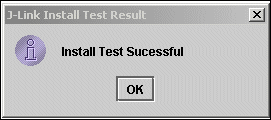
| 5. | Run Creo Parametric. The Creo Parametric File menu has a new button, added by the Creo Object TOOLKIT Java application, called J-Link Install Test. When you choose this button, the Creo Object TOOLKIT Java application displays a custom dialog indicating whether the installation test has succeeded:
 Note
On Windows the results dialog may appear behind the Creo Parametric window. Use Atl-Tab to switch to the Java dialog.
|
Examples
|
Location
|
Main Class
|
|---|---|
|
<creo_otk_java_loadpoint>/jlink_appls/jlinkexamples
|
pfcExamplesMenu.java, however note that not all examples may be tied to this class.
|
The application jlinkexamples is a collection of the Creo Object TOOLKIT Java User’s Guide example source files . It covers most of the areas of Creo Object TOOLKIT Java.
Parameter Editor
|
Location
|
Main Class
|
|---|---|
|
<creo_jlink_loadpoint>/jlink_appls/jlink_param
|
com.ptc.jlinkdemo.parameditor.ParamEditor
|
The parameter editor example demonstrates a synchronous Creo Object TOOLKIT Java user interface that governs parameters and parameter values in the model. Setup and run the Creo Object TOOLKIT Java Parameter Editor example using the following:
| 1. | Set the path and CLASSPATH variables to include the Java Development Kit as described in (link) as described in Java Options and Debugging. |
| 2. | Set the CLASSPATH to include the jlink_param directory and the Creo Object TOOLKIT Java synchronous Jar file (otk.jar). Refer to the section Testing the J-Link Synchronous Installation for more information on setting the CLASSPATH. |
| 3. | Compile the code. On Windows, execute the batch file compile.bat.
|
| 4. | Start Creo Parametric from a directory containing the creotk.dat or protk.dat file. Create or retrieve any model that contains parameters. |
| 5. | Select J-Link Parameter Editor from the Applications Menu. The system will display a graphical interface that contains a list of parameters for the selected model as shown in
the following figure.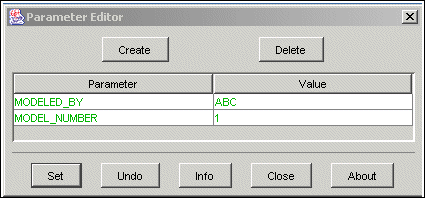 |
The parameter editor also supports the following customized types of parameters:
| • | Using the editor to create parameters with descriptive names (user interface names) of up to 80 character. The value of the assigned user interface name will be displayed as the parameter name in the Creo Object TOOLKIT Java user interface. |
| • | Creating parameters that obey specific rules:
|
When you open the Creo Object TOOLKIT Java user interface, the parameter value is governed by the rules assigned to it. If the parameter value is changed to fall outside
the permitted values it will be highlighted in red.
Round Checker Utility
|
Location
|
Main Class
|
|---|---|
|
<creo_jlink_loadpoint>/jlink_appls/jlink_elev
|
com.ptc.jlinkdemo.round.RoundChecker
|
The round checker example demonstrates a synchronous Creo Object TOOLKIT Java utility that monitors the values assigned to round dimensions. If the value of any modified or newly created round is reduced
below a programmed limit, a Creo Object TOOLKIT Java user interface will appear with information about the violation.
Use the following steps to setup and run the example:
| 1. | Set the path and CLASSPATH variables to include the Java Development Kit as described in (link). |
| 2. | Set the CLASSPATH to include the jlink_elev directory and the Creo Object TOOLKIT Java synchronous Jar file (otk.jar). |
| 3. | Compile the code. On Windows, execute the batch file compile.bat.
|
| 4. | Load any Creo Parametric model with rounds. Modify the round to less than 0.5. A Creo Object TOOLKIT Java dialog that identifies the problem will be displayed. The same dialog will appear if a new round that does not adhere to the specified dimensions is created. |
Save Check Utility
|
Location
|
Main Class
|
|---|---|
|
<creo_jlink_loadpoint>/jlink_appls
/jlink_elev |
com.ptc.jlinkdemo.savecheck.
SaveChecker |
The save check example demonstrates a synchronous Creo Object TOOLKIT Java utility that presents a user interface that identifies if any problems exist in the model you are about to save. If any problems
exist in the assigned parameter values or if a material has not been assigned to a part, the user interface will appear with
information about the problems.
The instructions to setup and run the save check example are similar to the instructions for the round checker utility. To
access the interface, choose Tools, Perform Release Checks.