Assemblies and Components
This section describes the Creo Object TOOLKIT Java functions that access the functions of a Creo assembly. You must be familiar with the following before you read this section:
•  The Selection Object
•  Coordinate Systems
•  The Geometry section
Structure of Assemblies and Assembly Objects
The object Assembly is an instance of Solid. The Assembly object can therefore be used as input to any of the Solid and Model methods applicable to assemblies. However assemblies do not contain solid geometry items. The only geometry in the assembly is datums (points, planes, axes, coordinate systems, curves, and surfaces). Therefore solid assembly features such as holes and slots will not contain active surfaces or edges in the assembly model.
The solid geometry of an assembly is contained in its components. A component is a feature of type ComponentFeat.ComponentFeat, which is a reference to a part or another assembly, and a set of parametric constraints for determining its geometrical location within the parent assembly.
Assembly features that are solid, such as holes and slots, and therefore affect the solid geometry of parts in the assembly hierarchy, do not themselves contain the geometry items that describe those modifications. These items are always contained in the parts whose geometry is modified, within local features created for that purpose.
The important Creo Object TOOLKIT Java functions for assemblies are those that operate on the components of an assembly. The object ComponentFeat, which is an instance of Feature is defined for that purpose. Each assembly component is treated as a variety of feature, and the integer identifier of the component is also the feature identifier.
An assembly can contain a hierarchy of assemblies and parts at many levels, in which some assemblies and parts may appear more than once. To identify the role of any database item in the context of the root assembly, it is not sufficient to have the integer identifier of the item and the handle to its owning part or assembly, as would be provided by its Feature description.
It is also necessary to give the full path of the assembly-component references down from the root assembly to the part or assembly that owns the database item. This is the purpose of the object ComponentPath, which is used as the input to Creo Object TOOLKIT Java assembly functions.
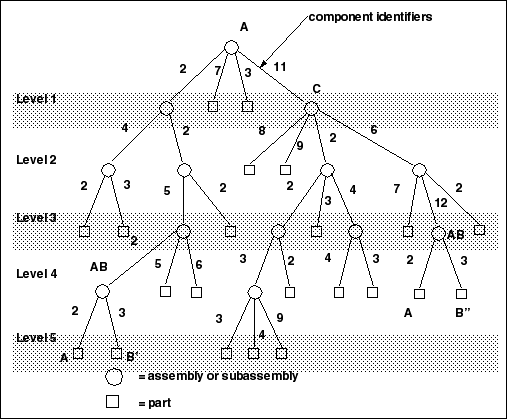
The following figure shows an assembly hierarchy with two examples of the contents of a ComponentPath object.
Image
In the assembly shown in the figure, subassembly C is component identifier 11 within assembly A, Part B is component identifier 3 within assembly AB, and so on. The subassembly AB occurs twice. To refer to the two occurrences of part B, use the following:
(?)Component BComponent B"
ComponentIds.get(0) = 2   ComponentIds.get(1) = 11
ComponentIds.get(1) = 2   ComponentIds.get(2) = 6
ComponentIds.get(2) = 5   ComponentIds.get(3) = 12
ComponentIds.get(3) = 2   ComponentIds.get(4) = 3
ComponentIds.get(4) = 3
The object ComponentPath is one of the main portions of the Selection object.
Assembly Components
Methods Introduced:
The method pfcComponentFeat.ComponentFeat.GetIsBulkitem identifies whether an assembly component is a bulk item. A bulk item is a non-geometric assembly feature that should appear in an assembly bill of materials.
The method pfcComponentFeat.ComponentFeat.GetIsSubstitute returns a true value if the component is substituted, else it returns a false. When you substitute a component in a simplified representation, you temporarily exclude the substituted component and superimpose the substituting component in its place.
The method pfcComponentFeat.ComponentFeat.GetCompType returns the type of the assembly component.
The method pfcComponentFeat.ComponentFeat.SetCompType enables you to set the type of the assembly component. The component type identifies the purpose of the component in a manufacturing assembly.
The method pfcComponentFeat.ComponentFeat.GetModelDescr returns the model descriptor of the component part or subassembly.
Note
From Pro/ENGINEER Wildfire 4.0 onwards, the method pfcComponentFeat.ComponentFeat.GetModelDescr throws an exception pfcExceptions.XtoolkitCantOpen if called on an assembly component whose immediate generic is not in session. Handle this exception and typecast the assembly component as pfcSolid.Solid, which in turn can be typecast as pfcFamily.FamilyMember, and use the method pfcFamily.FamilyMember.GetImmediateGenericInfo to get the model descriptor of the immediate generic model. If you wish to switch off this behavior and continue to run legacy applications in the pre-Wildfire 4.0 mode, set the configuration option retrieve_instance_dependencies to instance_and_generic_deps.
The method pfcCompontentFeat.ComponentFeat.GetIsPlaced determines whether the component is placed.
The method pfcCompontentFeat.ComponentFeat.SetIsPlaced forces the component to be considered placed. The value of this parameter is important in assembly Bill of Materials.
Note
Once a component is constrained or packaged, it cannot be made unplaced again.
A component of an assembly that is either partially constrained or unconstrained is known as a packaged component. Use the method pfcCompontentFeat.ComponentFeat.GetIsPackaged to determine if the specified component is packaged.
The method pfcCompontentFeat.ComponentFeat.GetIsUnderconstrained determines if the specified component is underconstrained, that is, it possesses some constraints but is not fully constrained.
The method pfcCompontentFeat.ComponentFeat.GetIsFrozen determines if the specified component is frozen. The frozen component behaves similar to the packaged component and does not follow the constraints that you specify.
The method pfcCompontentFeat.ComponentFeat.GetPosition retrieves the component’s initial position before constraints and movements have been applied. If the component is packaged this position is the same as the constraint’s actual position. This method modifies the assembly component data but does not regenerate the assembly component. To regenerate the component, use the method pfcComponentFeat.ComponentFeat.Regenerate.
The method pfcComponentFeat.ComponentFeat.CopyTemplateContents copies the template model into the model of the specified component.
The method pfcCompontentFeat.ComponentFeat.CreateReplaceOp creates a replacement operation used to swap a component automatically with a related component. The replacement operation can be used as an argument to pfcSolid.Solid.ExecuteFeatureOps.
The method wfcComponentFeat.WComponentFeat.MakeUniqueSubAssembly creates a unique instance of the sub-assembly by specifying the path to the sub-assembly. Use the method wfcComponentFeat.WComponentFeat.RemoveUniqueSubAssembly to remove the instance of the sub-assembly.
Use the method wfcComponentFeat.WComponentFeat.IsUnplaced checks if the specified component is unplaced. Unplaced components belong to an assembly without being assembled or packaged. If the method returns true, the component is unplaced.
Regenerating an Assembly Component
Method Introduced:
The method pfcComponentFeat.ComponentFeat.Regenerate regenerates an assembly component. The method regenerates the assembly component just as in an interactive Creo session.
Creating a Component Path
Methods Introduced
The method pfcAssembly.pfcAssembly.CreateComponentPath returns a component path object, given the Assembly model and the integer id path to the desired component.
Component Path Information
Methods Introduced:
The method pfcAssembly.ComponentPath.GetRoot returns the assembly at the head of the component path object.
The method pfcAssembly.ComponentPath.SetRoot setsthe assembly at the head of the component path object as the root assembly.
The method pfcAssembly.ComponentPath.GetComponentIds returns the sequence of ids which is the path to the particular component.
The method pfcAssembly.ComponentPath.SetComponentIds sets the path from the root assembly to the component through various subassemblies containing this component.
The method pfcAssembly.ComponentPath.GetLeaf returns the solid model at the end of the component path.
The method pfcAssembly.ComponentPath.GetTransform returns the coordinate system transformation between the assembly and the particular component. It has an option to provide the transformation from bottom to top, or from top to bottom. This method describes the current position and the orientation of the assembly component in the root assembly.
The method pfcAssembly.ComponentPath.SetTransform applies a temporary transformation to the assembly component, similar to the transformation that takes place in an exploded state. The transformation will only be applied if the assembly is using DynamicPositioning.
The method pfcAssembly.ComponentPath.GetIsVisible identifies if a particular component is visible in any simplified representation.
The methods wfcAssembly.SubstituteComponent.GetSubCompPath and wfcAssembly.SubstituteComponent.GetSubCompFeat return the component path and handle to the component feature of the substituted component.
The method wfcAssembly.WComponentPath.GetSubstituteComponent returns the component path and handle to the substituted component, when the replacing component is a simplified representation. The method wfcAssembly.WComponentPath.GetSubstitutionType returns the substitution type of the simplified representation using the enumerated type wfcAssembly.SubstitutionType:
•  SUBSTITUTE_NONE—Specifies that no substitution type has been defined.
•  SUBSTITUTE_INTERCHG—Specifies that the component is substituted with an interchange assembly component or a family table.
•  SUBSTITUTE_PRT_REP—Specifies that the part is substituted with a simplified representation.
•  SUBSTITUTE_ASM_REP—Specifies that the assembly is substituted with a simplified representation.
•  SUBSTITUTE_ENVELOPE—Specifies that the assembly is substituted with an envelope.
•  SubstitutionType_nilNULL value.
Displayed Entities
Methods Introduced:
The methods in this section return the list of entities, that is, points, coordinate systems, datum curves, and quilts that are currently displayed in an assembly.
Assembling Components
Methods Introduced:
The method pfcAssembly.Assembly.AssembleComponent adds a specified component model to the assembly at the specified initial position. The position is specified in the format defined by the interfacepfcBase.Transform3D. Specify the orientation of the three axes and the position of the origin of the component coordinate system, with respect to the target assembly coordinate system.
Note
If the transform matrix passed as the initial position of the component is incorrect and non-orthonormal, the method pfcAssembly.Assembly.AssembleComponent throws an exception pfcExceptions.XToolkitBadInputs. In such scenario, you can use the method pfcBase.pfcBase.MakeMatrixOrthonormal to convert this non-orthonormal matrix to an orthonormal matrix.
The method pfcAssembly.Assembly.AssembleByCopy creates a new component in the specified assembly by copying from the specified component. If no model is specified, then the new component is created empty. The input parameters for this method are:
•  LeaveUnplaced—If true the component is unplaced. If false the component is placed at a default location in the assembly. Unplaced components belong to an assembly without being assembled or packaged. These components appear in the model tree, but not in the graphic window. Unplaced components can be constrained or packaged by selecting them from the model tree for redefinition. When its parent assembly is retrieved into memory, an unplaced component is also retrieved.
•  ModelToCopy—Specify the model to be copied into the assembly
•  NewModelName—Specify a name for the copied model
The method pfcComponentFeat.ComponentFeat.GetConstraints retrieves the constraints for a given assembly component.
The method pfcComponentFeat.ComponentFeat.SetConstraints allows you to set the constraints for a specified assembly component. The input parameters for this method are:
•  Constraints—Constraints for the assembly component. These constraints are explained in detail in the later sections.
•  ReferenceAssembly—The path to the owner assembly, if the constraints have external references to other members of the top level assembly. If the constraints are applied only to the assembly component then the value of this parameter should be null.
This method modifies the component feature data and regenerates the assembly component.
The method pfcComponentFeat.ComponentFeat.GetConstraintsWithCompPath retrieves the constraints for a given assembly component using the input argument CompPath which is the path to the owner assembly. Pass this input argument CompPath, if the constraints have references to other members of the top level assembly. Pass it as Null, if the constraints have references only to the owner assembly.
The method wfcComponentFeat.WComponentFeat.RemoveConstraint removes one or all the constraints for the specified assembly component. It takes the index of the constraint as its input argument.
The method wfcAssembly.WAssembly.AutoInterchange interchanges an assembly component with another component that contains equivalent assembly constraints. The input parameters are:
•  ComponentIDs—Specifies the component identifiers of the replaced members from the assembly nodes.
•  ReplacementModel—Specifies the replacing component, which can be a part or a sub-assembly.
The method wfcAssembly.WAssembly.CreateAssemblyItem creates an assembly item that defines the flexible components. Refer to the section Flexible Components and Inheritance Features in an Assembly for more information on flexible items.
The method wfcAssembly.WAssembly.GetConnectors returns the list of connectors defined for the specified assembly.
The method wfcAssembly.WAssembly.GetHarnesses returns the list of harnesses defined for the specified assembly.
The method wfcAssembly.WAssembly.GetLinestocks returns the list of linestocks defined for the specified assembly. Use the methods wfcAssembly.LineStock.GetName and wfcAssembly.LineStock.SetName to get and set the name of linestock in an assembly.
The method wfcAssembly.WAssembly.GetSpools returns the list of spools defined for the specified assembly. Use the methods wfcAssembly.Spool.GetName and wfcAssembly.Spool.SetName to get and set the name of spool in an assembly.
Use the method wfcAssembly.WAssembly.ListDisplayedComponents to retrieve a list of all the currently displayed components in a solid.
The methods wfcExternalObject.ExternalFeatRefAsmComp.GetPathToOwner and wfcExternalObject.ExternalFeatRefAsmComp.SetPathToOwner retrieve and set the path from the external specified reference to the component that owns the specified external reference.
The methods wfcExternalObject.ExternalFeatRefAsmComp.GetPathToRef and wfcExternalObject.ExternalFeatRefAsmComp.SetPathToRef retrieve and set the path from the external specified reference to the component from which the external reference was created.
The method wfcExternalObject.WExternalFeatureReference.GetAsmcomponents retrieves from the specified external reference a path to the component from which the reference was created. It also returns a path to the component that owns the specified external reference.
The method wfcExternalObject.WExternalFeatureReference.GetFeature retrieves from the specified external reference a feature referred to by the external reference.
Constraint Attributes
Methods Introduced:
The method pfcComponentFeat.pfcComponentFeat.ConstraintAttributes_Create returns the constraint attributes object based on the values of the following input parameters:
•  Ignore—Constraint is ignored during regeneration. Use this capability to store extra constraints on the component, which allows you to quickly toggle between different constraints.
•  Force—Constraint has to be forced for line and point alignment.
•  None—No constraint attributes. This is the default value.
Use the Get methods to retrieve the values of the input parameters specified above and the Set methods to modify the values of these input parameters.
Assembling a Component Parametrically
You can position a component relative to its neighbors (components or assembly features) so that its position is updated as its neighbors move or change. This is called parametric assembly. The Creo application allows you to specify constraints to determine how and where the component relates to the assembly. You can add as many constraints as you need to make sure that the assembly meets the design intent.
Methods Introduced:
The method pfcComponentFeat.pfcComponentFeat.ComponentConstraint_Create returns the component constraint object having the following parameters:
•  ComponentConstraintType—Using the TYPE options, you can specify the placement constraint types. They are as follows:
  ASM_CONSTRAINT_MATE—Use this option to make two surfaces touch one another, that is coincident and facing each other.
  ASM_CONSTRAINT_MATE_OFF—Use this option to make two planar surfaces parallel and facing each other.
  ASM_CONSTRAINT_ALIGN—Use this option to make two planes coplanar, two axes coaxial and two points coincident. You can also align revolved surfaces or edges.
  ASM_CONSTRAINT_ALIGN_OFF—Use this option to align two planar surfaces at an offset.
  ASM_CONSTRAINT_INSERT—Use this option to insert a "male" revolved surface into a ``female'' revolved surface, making their respective axes coaxial.
  ASM_CONSTRAINT_ORIENT—Use this option to make two planar surfaces to be parallel in the same direction.
  ASM_CONSTRAINT_CSYS—Use this option to place a component in an assembly by aligning the coordinate system of the component with the coordinate system of the assembly.
  ASM_CONSTRAINT_TANGENT—Use this option to control the contact of two surfaces at their tangents.
  ASM_CONSTRAINT_PNT_ON_SRF—Use this option to control the contact of a surface with a point.
  ASM_CONSTRAINT_EDGE_ON_SRF—Use this option to control the contact of a surface with a straight edge.
  ASM_CONSTRAINT_DEF_PLACEMENT—Use this option to align the default coordinate system of the component to the default coordinate system of the assembly.
  ASM_CONSTRAINT_SUBSTITUTE—Use this option in simplified representations when a component has been substituted with some other model
  ASM_CONSTRAINT_PNT_ON_LINE—Use this option to control the contact of a line with a point.
  ASM_CONSTRAINT_FIX—Use this option to force the component to remain in its current packaged position.
  ASM_CONSTRAINT_AUTO—Use this option in the user interface to allow an automatic choice of constraint type based upon the references.
  ASM_CONSTRAINT_EXPLICIT
•  AssemblyReference—A reference in the assembly.
•  AssemblyDatumSide—Orientation of the assembly. This can have the following values:
  Yellow—The primary side of the datum plane which is the default direction of the arrow.
  Red—The secondary side of the datum plane which is the direction opposite to that of the arrow.
•  ComponentReference—A reference on the placed component.
•  ComponentDatumSide—Orientation of the assembly component. This can have the following values:
  Yellow—The primary side of the datum plane which is the default direction of the arrow.
  Red—The secondary side of the datum plane which is the direction opposite to that of the arrow.
•  Offset—The mate or align offset value from the reference.
•  Attributes—Constraint attributes for a given constraint
•  UserDefinedData—A string that specifies user data for the given constraint.
Use the Get methods to retrieve the values of the input parameters specified above and the Set methods to modify the values of these input parameters.
Redefining and Rerouting Assembly Components
These functions enable you to reroute previously assembled components, just as in an interactive Creo session.
Methods Introduced:
The method pfcComponentFeat.ComponentFeat.RedefineThroughUI must be used in interactive Creo Object TOOLKIT Java applications. This method displays the dialog box for constraints. This enables the end user to redefine the constraints interactively. The control returns to Creo Object TOOLKIT Java application when the user selects OK or Cancel and the dialog box is closed.
The method pfcComponentFeat.ComponentFeat.MoveThroughUI invokes a dialog box that prompts the user to interactively reposition the components. This interface enables the user to specify the translation and rotation values. The control returns to Creo Object TOOLKIT Java application when the user selects OK or Cancel and the dialog box is closed.
Exploded Assemblies
These methods enable you to determine and change the explode status of the assembly object.
Methods Introduced:
The methods pfcAssembly.Assembly.Explode and pfcAssembly.Assembly.UnExplode enable you to determine and change the explode status of the assembly object.
The method pfcAssembly.Assembly.GetIsExploded reports whether the specified assembly is currently exploded. Use this method in the assembly mode only. The exploded status of an assembly depends on the mode. If an assembly is opened in the drawing mode, the state of the assembly in the drawing view is displayed. The drawing view does not represent the actual exploded state of the assembly.
The method pfcAssembly.Assembly.GetActiveExplodedState returns the current active explode state.
The method pfcAssembly.Assembly.GetDefaultExplodedState returns the default explode state.
The method pfcAssembly.ExplodedState.Activate activates the specified explode state representation.
Accessing Exploded States
Methods Introduced:
The methods wfcAssembly.WAssembly.GetExplodeStateFromName and wfcAssembly.WAssembly.GetExplodeStateFromId return the exploded state representation of a solid with the specified name and ID respectively.
The method wfcAssembly.WAssembly.SelectExplodedState enables you to select a specific exploded state from the list of defined exploded states.
The method wfcAssembly.WExplodedState.GetExplodedStateName returns the name of the exploded state. Use the method wfcAssembly.WExplodedState.SetExplodedStateName to set the name of the exploded state.
The method wfcAssembly.WExplodedState.GetExplodedcomponents returns an array of assembly component paths that are included in the exploded state.
The method wfcAssembly.WExplodedState.GetExplodedStateMoves retrieves an array of moves for the specified exploded state. The sequence of moves defines the exploded position of an assembly component or a set of assembly components. For example, you can move an assembly component over the X-axis, rotate it over a selected edge, and then move over the Y-axis. The final position of the assembly component is attained by performing these three moves. Use the method wfcAssembly.WExplodedState.SetExplodedStateMoves to set the array of moves of an exploded state.
The method wfcAssembly.wfcAssembly.ExplodedAnimationMoveInstruction_Create creates a wfcAssembly.ExplodedAnimationMoveInstruction that contains information about the moves of an exploded state.
The methods wfcAssembly.ExplodedAnimationMoveInstruction.GetCompSet returns an array that contains the full path to the assembly component. Use the method wfcAssembly.ExplodedAnimationMoveInstruction.SetCompSet to set an array of paths to the assembly components.
The methods wfcAssembly.ExplodedAnimationMoveInstruction.GetMove and wfcAssembly.ExplodedAnimationMoveInstruction.SetMove retrieve and set the move of the exploded state as a ExplodedAnimationMove object.
The method wfcAssembly.wfcAssembly.ExplodedAnimationMove_Create creates the wfcAssembly.ExplodedAnimationMove data object.
The method wfcAssembly.ExplodedAnimationMove.GetMoveType returns the type of move for the exploded state. The move can have one of the following values:
•  EXPLDANIM_MOVE_TRANSLATE
•  EXPLDANIM_MOVE_ROTATE
Use the method wfcAssembly.ExplodedAnimationMove.SetMoveType to set the move type using the enumerated type wfcAssembly.ExplodedAnimationMoveType.
The methods wfcAssembly.ExplodedAnimationMove.GetStartPoint and wfcAssembly.ExplodedAnimationMove.SetStartPoint get and set the start location of the transitional direction or the rotational axis, depending upon the selected move type.
The methods wfcAssembly.ExplodedAnimationMove.GetDirVector and wfcAssembly.ExplodedAnimationMove.SetDirVector get and set the direction vector for the transitional direction or the rotational axis, depending upon the selected move type.
Depending upon the selected move type, the methods wfcAssembly.ExplodedAnimationMove.GetValue and wfcAssembly.ExplodedAnimationMove.SetValue get and set the translational distance or the rotation angle.
Manipulating Exploded States
Methods Introduced:
The method wfcAssembly.WAssembly.CreateExplodedState creates a new exploded state based on the values of the following input arguments:
•  name—Specifies the name of the exploded state. This argument cannot be NULL.
•  AnimMoveInstructions—Specifies an array of ExplodedAnimationMoveInstruction objects.
Use the method wfcAssembly.WAssembly.DeleteExplodedState to delete a specified exploded state.
Skeleton Models
Skeleton models are a 3-dimensional layout of the assembly. These models are holders or distributors of critical design information, and can represent space requirements, important mounting locations, and motion.
Methods Introduced:
The method pfcAssembly.Assembly.AssembleSkeleton adds an existing skeleton model to the specified assembly.
The method pfcAssembly.Assembly.GetSkeleton returns the skeleton model of the specified assembly.
The method pfcAssembly.Assembly.DeleteSkeleton deletes a skeleton model component from the specified assembly.
The method pfcAssembly.Assembly.AssembleSkeletonByCopy adds a specified skeleton model to the assembly. The input parameters for this method are:
•  SkeletonToCopy—Specify the skeleton model to be copied into the assembly
•  NewSkeletonName—Specify a name for the copied skeleton model
The method pfcSolid.Solid.GetIsSkeleton determines if the specified part model is a skeleton model or a concept model. It returns a true if the model is a skeleton else it returns a false.
Flexible Components and Inheritance Features in an Assembly
A flexible component allows variance of items such as features, dimensions, annotations, and parameters of a model in the context of an assembly. The methods in this section describe the properties for the flexible component.
An Inheritance feature allows one-way associative propagation of geometry and feature data from a reference part to target part within an assembly. The reference part is the original part and the target part contains the inheritance features. Inheritance features are always created by referencing existing parts. An inheritance feature begins with all of its geometry and data identical to the reference part from which it is derived.
Use inheritance features or flexible components to create variations of a model in an assembly. This section refers collectively to inheritance features and flexible components as "variant features".
Methods Introduced:
The method wfcComponentFeat.WComponentFeat.CreateFlexibleModel creates a flexible model from the specified flexible model component.
The method wfcComponentFeat.WComponentFeat.CreatePredefinedFlexibility
Component
converts the specified assembly component to a flexible component. It uses the variant items with predefined flexibility to create the flexible component.
Use the method wfcComponentFeat.WComponentFeat.IsFlexible to identify if the specified assembly component is a flexible component. If the method returns true, the component is a flexible component.
The method wfcComponentFeat.WComponentFeat.SetAsFlexible converts a specified assembly component to a flexible component by using the variant items specified in the input argument.
The method wfcComponentFeat.WComponentFeat.UnsetAsFlexible converts a flexible component to a regular component.
Variant Feature Model
Method Introduced:
The method wfcModel.WModel.IsVariantFeatModel returns a boolean to identify if a model pointer is from an inheritance feature or a flexible component. The method returns true, if the model pointer is from an inheritance feature, else it returns false.
Variant Items for Flexible Components
Varied items define component flexibility. You define components, dimensions, features, parameters, references, gtols, and so on in the original part. The methods described in this section enable you to assign values to the varied items to define component flexibility in the assembly
Methods Introduced:
The method wfcComponentFeat.wfcComponentFeat.AssemblyItemInstructions_Create creates a new instance of the object wfcAssemblyItemInstruction that contains the instructions to define a variant item for a flexible component. Specify the model owner, item type, and item ID as input arguments of this method. The input arguments are:
•  ItemOwner— Specifies the model owner of the item or parameter.
•  ItemType— Specifies the item type. The value of this argument is ignored for parameter. For parameter, pass this value as _ModelItemType_null.
•  ItemId— Specifies the item identifier.
•  ItemName— Specifies the parameter name.
The method wfcComponentFeat.AssemblyItemInstructions.GetItemOwner gets the name of the model owner for the specified variant item or parameter.
The method wfcComponentFeat.AssemblyItemInstructions.GetItemCompPath gets the component path for the variant item. Use the method wfcComponentFeat.AssemblyItemInstructions.SetItemCompPath to set the component path for the variant item.
The methods wfcComponentFeat.AssemblyItemInstructions.GetItemId and wfcComponentFeat.AssemblyItemInstructions.SetItemId get and set the identifier for the variant item or parameter.
The methods wfcComponentFeat.AssemblyItemInstructions.GetItemName and wfcComponentFeat.AssemblyItemInstructions.SetItemName get and set the name of the variant parameter.
The methods wfcComponentFeat.AssemblyItemInstructions.GetItemType and wfcComponentFeat.AssemblyItemInstructions.SetItemType get and set the type of variant item using the enumerated type pfcModelItem.ModelItemType. This value is not required for variant parameter. If the object is a variant parameter, pass this value as _ModelItemType_null.
The method wfcFeature.WFeature.ListVariedItems lists the variant items, that is dimensions, features, and annotations owned by an inheritance feature or flexible component.
The method wfcFeature.WFeature.ListVariedParameters lists the variant parameters owned by an inheritance feature or flexible component.
Gathering Components by Rule
Creo application provides tools to search for components within large assemblies. This section describes how to access some of the functionality through Creo application.
You can specify different types of rules and use them to generate a list of components for which the rule applies. The components can be gathered using the following rules:
•  By model name
•  By parameters, using an expression
•  By location with a zone
•  By distance from a point
•  By size
•  By an existing simplified representation
Use the method wfcAssembly.AssemblyRule.GetRuleType to get the type of rule that was used to search for the component. The types of rules are:
•  RULE_NONESpecifies that no rule has been set.
•  RULE_NAME—Specifies the rule to search components by model name.
•  RULE_EXPR—Specifies the rule to search components by parameters, using an expression.
•  RULE_ZONE—Specifies the rule to search components by location with a zone.
•  RULE_DIST—Specifies the rule to search components by distance from a point.
•  RULE_SIZE—Specifies the rule to search components by size.
•  RULE_SIMP_REP—Specifies the rule to search components by an existing simplified representation.
Gathering Components by Model Name
The class wfcAssembly.AssemblyNameRule specifies the rule to gather components by model name. This class is an interface that can be used to define the name rule and contains the methods described below:
Use the method wfcAssembly.wfcAssembly.AssemblyNameRule_Create o create a rule to search for components by name. Specify the search string as the input parameter NameMask for this method. Use wildcards to improve the search results.
•  Use the method wfcAssembly.AssemblyNameRule.SetNameMask to set the search string for the name rule.
•  Use the method wfcAssembly.AssemblyNameRule.GetNameMask to get the search string used in the name rule.
Note
The attribute 'NameMask' can be a wildcard character that is, you can specify wildcard characters for object names, their extensions, and directory names. For more information, refer to the online Help.
Gathering Components by Size
The class wfcAssembly.AssemblySizeRule is an interface that can be used to define the rule to gather components by their size.
Use the method wfcAssembly.wfcAssembly.AssemblySizeRule_Create to create a rule to search for components by size. The input parameters of this method are as follows:
•  Absolute—If set to true, compares the absolute size of the model with respect to the assembly, else compares the relative size of the model with respect to the assembly.
•  GreaterThan—If set to true, searches for components that are larger than the specified size, else searches for components that are smaller.
•  IncludeDatums—If set to true, gather the model volume using the bounding box, else use the regeneration outline to gather the model volume.
•  Value—Specifies the actual size against which the size of the model will be compared.
Use the methods wfcAssembly.AssemblySizeRule.SetAbsolute and wfcAssembly.AssemblySizeRule.GetAbsoluteto set and get the absolute or relative size of the model respectively. Set the value of the input parameter to true, to compare the absolute size of the model with the size of the top-level assembly. Specify false, to compare the relative size of the model with respect to the assembly. For the relative size, specify a value in the range of 0.0 to 1.0. The method compares the component size to that of the top-level assembly and uses this ratio to determine whether the component should be gathered.
Use the methods wfcAssembly.AssemblySizeRule.SetGreaterThan and wfcAssembly.AssemblySizeRule.GetGreaterThan to set and get the absolute or relative size of the model respectively. To search for components greater than the specified size, set the parameter GreaterThan to true. If you set the parameter to false, the method gathers the components that are smaller than the specified size.
Use the methods wfcAssembly.AssemblySizeRule.SetIncludeDatums and wfcAssembly.AssemblySizeRule.GetIncludeDatums to set and get the model size using the bounding box or regeneration outline. Specify the value true to use bounding box, or false for regeneration outline.
Use the methods wfcAssembly.AssemblySizeRule.SetValue and wfcAssembly.AssemblySizeRule.GetValueto set the get the size against which the specified model will be compared. The valid range for this parameter is from 0.0 to 1.0 only if the Absolute attribute is set to false.
Gathering Components by Simplified Representation
The class wfcAssembly.AssemblySimpRepRule specifies the rule to gather components that belong to the specified simplified representation. This class is an interface that can be used to define the simplified representation rule and contains the methods described below:
Use the method wfcAssembly.wfcAssembly.AssemblySimpRepRule_Create to create a rule to search for components by simplified representation.
Use the methods wfcAssembly.AssemblySimpRepRule.GetRuleSimpRep and wfcAssembly.AssemblySimpRepRule.SetRuleSimpRep to get and set the simplified representation to be used for the rule.
Gathering Components by Parameters
The class wfcAssembly.AssemblyExpressionRule specifies the rule to gather components by parameter. This class is an interface that can be used to define the parameter rule and contains the methods described below:
Use the method wfcAssembly.wfcAssembly.AssemblyExpressionRule_Create to create a rule to search for components by parameter expressions. The parameter of this method is given below:
•  Expressions—Specifies the expression created using the parameters and logical operators.
Use the methods wfcAssembly.AssemblyExpressionRule.GetExpressions and wfcAssembly.AssemblyExpressionRule.SetExpressions to get and set the parameter expressions. You can specify an expression in the relations format to search for components of a particular parameter value. For example, consider the following expression:
type == "electrical" | cost <= 10
When you supply this expression to the rule, it searches for components that have a “cost” parameter of less than or equal to 10, or for components whose type parameter is set to “electrical.”
Gathering Components by Zone
The class wfcAssembly.AssemblyZoneRule specifies the rule to gather components by the specified zone feature. This class is an interface that can be used to define the zone rule and contains the methods described below:
Use the method wfcAssembly.wfcAssembly.AssemblyZoneRule_Create to create a rule to search for components by the zone feature. The parameter of this method is given below:
•  ZoneFeature—Gathers all the components that belong to the specified zone feature.
Use the methods wfcAssembly.AssemblyZoneRule.GetZoneFeature and wfcAssembly.AssemblyZoneRule.SetZoneFeature to get and set the zone feature. When you create a zone, the method creates a zone feature in the top-level assembly.
Gathering Components by Distance from a Point
The class wfcAssembly.AssemblyDistanceRule specifies the rule to gather components within specified distance from a point. This class is an interface that can be used to define the distance rule and contains the methods described below:
Use the method wfcAssembly.wfcAssembly.AssemblyDistanceRule_Create to create a rule to search for components within specified distance. The parameters of this method are given below:
•  Center—Specifies the centre point of the specified region.
•  Distance—Specifies the distance from center point.
•  IncludeDatums—Specifies the type of datum to be included.
Use the methods wfcAssembly.AssemblyDistanceRule.GetCenter and wfcAssembly.AssemblyDistanceRule.SetCenter to get and set the center point from which the distance is measured.
Use the method wfcAssembly.AssemblyDistanceRule.GetDistance to get the distance against which the components will be gathered. The method wfcAssembly.AssemblyDistanceRule.SetDistance sets the distance from the centre point of the model.
Use the methods wfcAssembly.AssemblyDistanceRule.GetIncludeDatums and wfcAssembly.AssemblyDistanceRule.SetIncludeDatums to set and get the model size respectively. If set to true, gather the model volume using the bounding box, else use the regeneration outline to gather the model volume.