Drawings
This section describes how to program drawing functions using Creo Object TOOLKIT Java.
Overview of Drawings in Creo Object TOOLKIT Java
This section describes the functions that deal with drawings. You can create drawings of allCreo models using the functions in Creo Object TOOLKIT Java. You can annotate the drawing, manipulate dimensions, and use layers to manage the display of different items.
Unless otherwise specified, Creo Object TOOLKIT Java functions that operate on drawings use world units.
Creating Drawings from Templates
Drawing templates simplify the process of creating a drawing using Creo Object TOOLKIT Java. Creo can create views, set the view display, create snap lines, and show the model dimensions based on the template. Use templates to:
•  Define layout views
•  Set view display
•  Place notes
•  Place symbols
•  Define tables
•  Show dimensions
Method Introduced:
Use the method pfcSession.BaseSession.CreateDrawingFromTemplate to create a drawing from the drawing template and to return the created drawing. The attributes are:
•  New drawing name
•  Name of an existing template
•  Name and type of the solid model to use while populating template views
•  Sequence of options to create the drawing. The options are as follows:
  DRAWINGCREATE_DISPLAY_DRAWING—display the new drawing.
  DRAWINGCREATE_SHOW_ERROR_DIALOG—display the error dialog box.
  DRAWINGCREATE_WRITE_ERROR_FILE—write the errors to a file.
  DRAWINGCREATE_PROMPT_UNKNOWN_PARAMS—prompt the user on encountering unknown parameters
Drawing Creation Errors
Methods Introduced:
The exception XToolkitDrawingCreateErrors is thrown if an error is encountered when creating a drawing from a template. This exception contains a list of errors which occurred during drawing creation.
Note
When this exception type is encountered, the drawing is actually created, but some of the contents failed to generate correctly.
The error structure contains an array of drawing creation errors. Each error message may have the following elements:
•  Type—The type of error as follows:
  DWGCREATE_ERR_SAVED_VIEW_DOESNT_EXIST—Saved view does not exist.
  DWGCREATE_ERR_X_SEC_DOESNT_EXIST—Specified cross section does not exist.
  DWGCREATE_ERR_EXPLODE_DOESNT_EXIST—Exploded state did not exist.
  DWGCREATE_ERR_MODEL_NOT_EXPLODABLE—Model cannot be exploded.
  DWGCREATE_ERR_SEC_NOT_PERP—Cross section view not perpendicular to the given view.
  DWGCREATE_ERR_NO_RPT_REGIONS—Repeat regions not available.
  DWGCREATE_ERR_FIRST_REGION_USED—Repeat region was unable to use the region specified.
  DWGCREATE_ERR_NOT_PROCESS_ASSEM— Model is not a process assembly view.
  DWGCREATE_ERR_NO_STEP_NUM—The process step number does not exist.
  DWGCREATE_ERR_TEMPLATE_USED—The template does not exist.
  DWGCREATE_ERR_NO_PARENT_VIEW_FOR_PROJ—There is no possible parent view for this projected view.
  DWGCREATE_ERR_CANT_GET_PROJ_PARENT—Could not get the projected parent for a drawing view.
  DWGCREATE_ERR_SEC_NOT_PARALLEL—The designated cross section was not parallel to the created view.
  DWGCREATE_ERR_SIMP_REP_DOESNT_EXIST—The designated simplified representation does not exist.
•  ViewName—Name of the view where the error occurred.
•  SheetNumber—Sheet number where the error occurred.
•  ObjectName—Name of the invalid or missing object.
•  View—2D view in which the error occurred.
Use the method pfcExceptions.XToolkitDrawingCreateErrors.GetErrors to obtain the preceding array elements from the error object.
Obtaining Drawing Models
This section describes how to obtain drawing models.
Methods Introduced:
The method pfcSession.BaseSession.RetrieveModel retrieves the drawing specified by the model descriptor. Model descriptors are data objects used to describe a model file and its location in the system. The method returns the retrieved drawing.
The method pfcSession.BaseSession.GetModel returns a drawing based on its name and type, whereas pfcSession.BaseSession.GetModelFromDescr returns a drawing specified by the model descriptor. The model must be in session.
Use the method pfcSession.BaseSession.ListModels to return a sequence of all the drawings in session.
Drawing Information
Methods Introduced:
The method pfcModel2D.Model2D.ListModels returns a list of all the solid models used in the drawing.
The method pfcModel2D.Model2D.GetCurrentSolid returns the current solid model of the drawing.
The method pfcModel2D.Model2D.ListSimplifiedReps returns the simplified representations of a solid model that are assigned to the drawing.
The method pfcModel2D.Model2D.GetTextHeight returns the text height of the drawing.
Access Drawing Location in Grid
Method introduced:
Use the method wfcModelD.WModel2D.GetLocationGridColumnFromPosition and wfcModel.WModel2D.GetLocationGridRowFromPosition to find the grid coordinates of a location in the drawing. The method specifies the position of a point, expressed in screen coordinates. This method returns strings representing the row and column containing the point.
Drawing Tree
A Drawing Tree enables to view a hierarchical representation of drawing items in an active drawing sheet. A drawing tree facilitates selection and availability of drawing operations for the represented drawing items. For more information, see the Creo Parametric Help. Use the following functions to refresh, expand, and collapse the drawing tree:
Methods introduced:
Use the method wfcModel.WModel2D.CollapseTree to collapse all nodes of the drawing tree in the Creo Parametric window and make its child nodes invisible. The input argument WindowId returns the Id of the window which contains the drawing. Use-1 to expand the drawing tree in the active window.
Use the method wfcModel.WModel2D.ExpandTree to expand the drawing tree in the Creo Parametric window and make all drawing sheets and drawing items in the active drawing sheet visible.
Use the method wfcModel.WModel2D.RefreshTree to rebuild the drawing tree in the Creo Parametric window that contains the drawing. You can use this function after adding a single drawing item or multiple drawing items to a drawing.
Note
Specify the input argument WindowId as -1 to refresh, expand, or collapse the drawing tree in the active window.
Drawing Operations
Methods Introduced:
The method pfcModel2D.Model2D.AddModel adds a new solid model to the drawing.
The method pfcModel2D.Model2D.DeleteModel removes a model from the drawing. The model to be deleted should not appear in any of the drawing views.
The method pfcModel2D.Model2D.ReplaceModel replaces a model in the drawing with a related model (the relationship should be by family table or interchange assembly). It allows you to replace models that are shown in drawing views and regenerates the view.
The method pfcModel2D.Model2D.SetCurrentSolid assigns the current solid model for the drawing. Before calling this method, the solid model must be assigned to the drawing using the method pfcModel2D.Model2D.AddModel. To see the changes to parameters and fields reflecting the change of the current solid model, regenerate the drawing using the method pfcSheet.SheetOwner.RegenerateSheet.
The method pfcModel2D.Model2D.AddSimplifiedRep associates the drawing with the simplified representation of an assembly
The method pfcModel2D.Model2D.DeleteSimplifiedRep removes the association of the drawing with an assembly simplified representation. The simplified representation to be deleted should not appear in any of the drawing views.
Use the method pfcModel2D.Model2D.Regenerate to regenerate the drawing draft entities and appearance.
The method pfcModel2D.Model2D.SetTextHeight sets the value of the text height of the drawing.
The method pfcModel2D.Model2D.CreateDrawingDimension creates a new drawing dimension based on the data object that contains information about the location of the dimension. This method returns the created dimension. Refer to the section Drawing Dimensions.
The method pfcModel2D.Model2D.CreateView creates a new drawing view based on the data object that contains information about how to create the view. The method returns the created drawing view. Refer to the section Creating Drawing Views.
Merge Drawings
You can merge two drawings to enhance the performance and management of large drawings. Individual Creo Parametric users can work in parallel and then merge their separate drawings into a single drawing file.
Methods Introduced:
Use the method wfcWDrawing.WDrawing.Merge to merge two drawings.
Drawing Sheets
A drawing sheet is represented by its number. Drawing sheets in Creo Object TOOLKIT Java are identified by the same sheet numbers seen by a Creo user.
Note
These identifiers may change if the sheets are moved as a consequence of adding, removing or reordering sheets.
Drawing Sheet Information
Methods Introduced
Superseded Method:
The method wfcWDrawing.WDrawing.GetSheetName retrieves the name of the specified drawing sheet.
The method pfcSheet.SheetOwner.GetSheetTransform returns the transformation matrix for the sheet specified by the sheet number. This transformation matrix includes the scaling needed to convert screen coordinates to drawing coordinates (which use the designated drawing units).
The method pfcSheet.SheetOwner.GetSheetInfo returns sheet data including the size, orientation, and units of the sheet specified by the sheet number.
The method pfcSheet.SheetOwner.GetSheetData and the interfacepfcSheet.SheetData have been deprecated. Use the method pfcSheet.SheetOwner.GetSheetInfo and the interfacepfcSheet.SheetInfo instead.
The method pfcSheet.SheetOwner.GetSheetScale returns the scale of the drawing on a particular sheet based on the drawing model used to measure the scale. If no models are used in the drawing then the default scale value is 1.0.
The method pfcSheet.SheetOwner.GetSheetFormat returns the drawing format used for the sheet specified by the sheet number. It returns a null value if no format is assigned to the sheet.
The method pfcSheet.SheetOwner.GetSheetFormatDescr returns the model descriptor of the drawing format used for the specified drawing sheet.
The method wfcWDrawing.WDrawing.GetFormatSheet drawing format for a specified drawing and sheet number within the drawing . A drawing format file can have two sheets defining two formats. You can create drawings using either of the sheets as drawing format. If such a drawing format file is used to create the drawing, the method wfcWDrawing.WDrawing.GetFormatSheet retrieves the sheet number of the drawing format which was used to create the specified drawing.
The method pfcSheet.SheetOwner.GetSheetBackgroundView returns the view object representing the background view of the sheet specified by the sheet number.
The method pfcSheet.SheetOwner.GetNumberOfSheets returns the number of sheets in the model.
The method pfcSheet.SheetOwner.GetCurrentSheetNumber returns the current sheet number in the model.
Note
The sheet numbers range from 1 to n, where n is the number of sheets.
The method pfcSheet.SheetOwner.GetSheetUnits returns the units used by the sheet specified by the sheet number.
Drawing Sheet Operations
Methods Introduced:
The method pfcSheet.SheetOwner.AddSheet adds a new sheet to the model and returns the number of the new sheet.
The method pfcSheet.SheetOwner.DeleteSheet removes the sheet specified by the sheet number from the model.
Use the method pfcSheet.SheetOwner.ReorderSheet to reorder the sheet from a specified sheet number to a new sheet number.
Note
The sheet number of other affected sheets also changes due to reordering or deletion.
The method pfcSheet.SheetOwner.RegenerateSheet regenerates the sheet specified by the sheet number.
Note
You can regenerate a sheet only if it is displayed.
Use the method pfcSheet.SheetOwner.SetSheetScale to set the scale of a model on the sheet based on the drawing model to scale and the scale to be used. Pass the value of the DrawingModel parameter as null to select the current drawing model.
Use the method pfcSheet.SheetOwner.SetSheetFormat to apply the specified format to a drawing sheet based on the drawing format, sheet number of the format, and the drawing model.
The sheet number of the format is specified by the FormatSheetNumber parameter. This number ranges from 1 to the number of sheets in the format. Pass the value of this parameter as null to use the first format sheet.
The drawing model is specified by the DrawingModel parameter. Pass the value of this parameter as null to select the current drawing model.
The method pfcSheet.SheetOwner.SetCurrentSheetNumber sets the current sheet to the sheet number specified.
The method wfcModel.WModel2D.CopyDrawingSheet creates a copy of a specified drawing sheet. Specify the sheet number of the sheet to be copied in the input argument sheet. Set it to a value less than 1 to create a copy of the currently selected sheet.
Use the method wfcModel.WModel2D.ShowSheetFormat to display or hide the drawing format for a specified drawing sheet. The input arguments are :
•  show— Specifies if the drawing format must be displayed. Pass true to display the drawing format.
•  sheet—Specifies the sheet number of the sheet. Set it to a value less than 1 to display or hide the drawing format of the currently selected sheet.
The method wfcModel.WModel2D.GetToleranceStandard returns the tolerance standard that is assigned to the specified drawing.
Use the method wfcModel.WModel2D.SetToleranceStandard to set the tolerance standard for a drawing.
The method wfcModel.WModel2D.IsSheetFormatBlanked checks if the drawing format of a specified drawing sheet is blank. In case of the current sheet, set the input argument sheet to a value less than 1.
The method wfcModel.WModel2D.IsSheetFormatShown checks if the drawing format of a specified drawing sheet is shown. The output argument sheet returns the value as True, if the drawing format is shown and returns the value as False, if the drawing format is not shown.
The method wfcModel.WModel2D.CreateLeaderWithArrowTypeNote enables you to create a note with a leader and the specified arrow type in a specified drawing. The input arguments are:
•  TextLines—Specifies the text lines using the pfcDetail.DetailTextLines object.
•  NoteAttach—Specifies the details of the attachment of the note using the pfcDetail.Attachment object.
•  LeaderAttachs—Specifies the leaders attached to the note using the pfcDetail.DetailLeaderAttachments object.
•  Types—Specifies the types of arrowheads used for leaders attached to the note using the wfcAnnotation.LeaderArrowTypes object.
Drawing Format Files
The format of a drawing refers to the boundary lines, referencing marks and graphic elements that appear on every sheet before any drawing elements are shown or added. These usually include items such as tables for the company name, detailers name, revision number and date. In a Creo Parametric drawing, you can associate a format file (.frm) with the drawing. This file carries all the format graphical information, and it can also carry some optional default attributes like text size and draft scale. The functions described in this section allow you to get and set the size of the drawing format.
The methods wfcModel.WModel2D.GetFormatSize and wfcModel.WModel2D.SetFormatSize retrieve and set the size of the drawing format in the specified drawing as awfcModel.FormatSizeData object. You can add a standard or customize size format in the drawing.
Use the method wfcModel.FormatSizeData_Create to create a drawing format in a specified drawing. The input arguments are:
•  PaperSize—Specifies the size of the drawing using the enumerated data type pfcModel.PlotPaperSize.
•  Width—Specifies the width of the drawing in inches, when PaperSize is set to VARIABLESIZEPLOT.
It specifies the width of the drawing in millimeters, when size is set to VARIABLESIZEPLOT.
Note
This argument is ignored for all the other sizes of the drawing except pfcVARIABLESIZEPLOT and VARIABLESIZE_IN_MM_PLOT.
•  Height—Specifies the height of the drawing in inches, when the size is set to VARIABLESIZEPLOT.
The methods wfcModel.FormatSizeData.GetPaperSize and wfcModel.FormatSizeData.SetPaperSize get and set the size of the drawing using the enumerated data type pfcModel.PlotPaperSize.
The methods wfcModel.FormatSizeData.GetWidth and wfcModel.FormatSizeData.SetWidth get and set the width of the drawing.
The methods wfcModel.FormatSizeData.GetHeight and wfcModel.FormatSizeData.SetHeight get and set the height of the drawing.
Drawing Views
A drawing view is represented by the interface pfcView2D.View2D. All model views in the drawing are associative, that is, if you change a dimensional value in one view, the system updates other drawing views accordingly. The model automatically reflects any dimensional changes that you make to a drawing. In addition, corresponding drawings also reflect any changes that you make to a model such as the addition or deletion of features and dimensional changes.
Creating Drawing Views
Method Introduced:
The method pfcModel2D.Model2D.CreateView creates a new view in the drawing. Before calling this method, the drawing must be displayed in a window.
The interfacepfcView2D.View2DCreateInstructions contains details on how to create the view. The types of drawing views supported for creation are:
•  DRAWVIEW_GENERAL—General drawing views
•  DRAWVIEW_PROJECTION—Projected drawing views
General Drawing Views
The interface pfcView2D.GeneralViewCreateInstructions contains details on how to create general drawing views.
Methods Introduced:
The method pfcView2D.pfcView2D.GeneralViewCreateInstructions_Create creates the pfcView2D.GeneralViewCreateInstructions at a object used for creating general drawing views.
Use the method pfcView2D.GeneralViewCreateInstructions.SetViewModel to assign the solid model to display in the created general drawing view.
Use the method pfcView2D.GeneralViewCreateInstructions.SetLocation to assign the location in a drawing sheet to place the created general drawing view.
Use the method pfcView2D.GeneralViewCreateInstructions.SetSheetNumber to set the number of the drawing sheet in which the general drawing view is created.
The method pfcView2D.GeneralViewCreateInstructions.SetOrientation assigns the orientation of the model in the general drawing view in the form of the pfcBase.Transform3D data object. The transformation matrix must only consist of the rotation to be applied to the model. It must not consist of any displacement or scale components. If necessary, set the displacement to {0, 0, 0} using the method pfcBase.Transform3D.SetOrigin, and remove any scaling factor by normalizing the matrix.
Use the method pfcView2D.GeneralViewCreateInstructions.SetExploded to set the created general drawing view to be an exploded view.
Use the method pfcView2D.GeneralViewCreateInstructions.SetScale to assign a scale to the created general drawing view. This value is optional, if not assigned, the default drawing scale is used.
Use the methods pfcView2D.GeneralViewCreateInstructions.GetViewScale and pfcView2D.GeneralViewCreateInstructions.SetViewScale to get and set a scale to the created general drawing view. This value is optional, if not assigned, the default drawing scale is used.
Projected Drawing Views
The interfacepfcView2D.ProjectionViewCreateInstructions contains details on how to create general drawing views.
Methods Introduced:
The method pfcView2D.pfcView2D.ProjectionViewCreateInstructions_Create creates the pfcView2D.ProjectionViewCreateInstructions data object used for creating projected drawing views.
Use the method pfcView2D.ProjectionViewCreateInstructions.SetParentView to assign the parent view for the projected drawing view.
Use the method pfcView2D.ProjectionViewCreateInstructions.SetLocation to assign the location of the projected drawing view. This location determines how the drawing view will be oriented.
Use the method pfcView2D.ProjectionViewCreateInstructions.SetExploded to set the created projected drawing view to be an exploded view.
Obtaining Drawing Views
Methods Introduced:
The method pfcSelection.Selection.GetSelView2D returns the selected drawing view (if the user selected an item from a drawing view). It returns a null value if the selection does not contain a drawing view.
The method pfcModel2D.Model2D.List2DViews lists and returns the drawing views found. This method does not include the drawing sheet background views returned by the method pfcSheet.SheetOwner.GetSheetBackgroundView.
The method pfcModel2D.Model2D.GetViewByName returns the drawing view based on the name. This method returns a null value if the specified view does not exist.
The method pfcModel2D.Model2D.GetViewDisplaying returns the drawing view that displays a dimension. This method returns a null value if the dimension is not displayed in the drawing.
Note
This method works for solid and drawing dimensions.
The method pfcSheet.SheetOwner.GetSheetBackgroundView returns the drawing sheet background views.
Drawing View Information
Methods Introduced:
The inherited method pfcObject.Child.GetDBParent, when called on a View2D object, provides the drawing model which owns the specified drawing view. The return value of the method can be downcast to a Model2D object.
Note
The method pfcObject.Child.GetOId is reserved for internal use.
The method pfcView2D.View2D.GetSheetNumber returns the sheet number of the sheet that contains the drawing view.
The method pfcView2D.View2D.GetIsBackground returns a value that indicates whether the view is a background view or a model view.
The method pfcView2D.View2D.GetModel returns the solid model displayed in the drawing view.
The method pfcView2D.View2D.GetScale returns the scale of the drawing view.
The method pfcView2D.View2D.GetIsScaleUserdefined specifies if the drawing has a user-defined scale.
The methodpfcView2D.View2D.GetOutline returns the position of the view in the sheet in world units.
The method pfcView2D.View2D.GetLayerDisplayStatus returns the display status of the specified layer in the drawing view.
The method pfcView2D.View2D.GetDisplay returns an output structure that describes the display settings of the drawing view. The fields in the structure are as follows:
•  Style—Whether to display as wireframe, hidden lines, no hidden lines, or shaded
•  TangentStyle—Linestyle used for tangent edges
•  CableStyle—Linestyle used to display cables
•  RemoveQuiltHiddenLines—Whether or not to apply hidden-line-removal to quilts
•  ShowConceptModel—Whether or not to display the skeleton
•  ShowWeldXSection—Whether or not to include welds in the cross-section
The method pfcView2D.View2D.GetTransform returns a matrix that describes the transform between 3D solid coordinates and 2D world units for that drawing view. The transformation matrix is a combination of the following factors:
•  The location of the view origin with respect to the drawing origin.
•  The scale of the view units with respect to the drawing units
•  The rotation of the model with respect to the drawing coordinate system.
The method pfcView2D.View2D.GetName returns the name of the specified view in the drawing.
The simplified representations of assembly and part can be used as drawing models to create general views. Use the method pfcView2D.View2D.GetSimpRep to retrieve the simplified representation for the specified view in the drawing.
Drawing View Display Information
Methods Introduced:
The method wfcQuickPrint.wfcQuickPrint.DrawingViewDisplay_Create creates a new instance of the DrawingViewDisplay object that contains information about the display styles being used in a view.
The methods wfcQuickPrint.DrawingViewDisplay.GetCableDisp and wfcQuickPrint.DrawingViewDisplay.SetCableDisp get and set the style used to display the cables. You can set the cable style using the object wfcQuickPrint.CableDisplay:
•  CABLEDISP_DEFAULT—Uses the display setting from Creo Parametric Options dialog box, under Entity Display, Cable display settings.
•  CABLEDISP_CENTERLINE—Displays centerlines of cables and wires.
•  CABLEDISP_THICK—Displays cables and wires as a thick lines.
In a view, you can define whether to show or hide the skeleton model. The methods wfcQuickPrint.DrawingViewDisplay.GetConceptModel and wfcQuickPrint.DrawingViewDisplay.SetConceptModel get and set the status of skeleton models. If you set the value as True, then the skeleton model is displayed.
The methods wfcQuickPrint.DrawingViewDisplay.GetDispStyle and wfcQuickPrint.DrawingViewDisplay.SetDispStyle get and set the display style of the model geometry. You can set the display style using the object pfcBase.DisplayStyle:
•  DISPSTYLE_DEFAULT—When you import drawings from Pro/ENGINEER Wildfire 2.0 or earlier releases that were saved with the Default option, this option is retained for these drawings. Once you update these drawings in Pro/ENGINEER Wildfire 3.0 and later releases, the DISPSTYLE_DEFAULT option changes to DISPSTYLE_FOLLOW_ENVIRONMENT.
•  DISPSTYLE_WIREFRAME—Shows all edges in wireframe style.
•  DISPSTYLE_HIDDEN_LINE—Shows all edges in hidden line style.
•  DISPSTYLE_NO_HIDDEN—Removes all hidden edge from view display.
•  DISPSTYLE_SHADED—Shows the view in shaded display mode.
•  DISPSTYLE_FOLLOW_ENVIRONMENT—Uses the current configuration settings for display.
•  DISPSTYLE_SHADED_WITH_EDGES—Shows the model as a shaded solid along with its edges.
You can remove the hidden lines in a quilt. The methods wfcQuickPrint.DrawingViewDisplay.GetQuiltHLR and wfcQuickPrint.DrawingViewDisplay.SetQuiltHLR get and set the hidden line removal property in quilts.
The methods wfcQuickPrint.DrawingViewDisplay.GetTanEdgeDisplay and wfcQuickPrint.DrawingViewDisplay.SetTanEdgeDisplay get and set the display style for tangent edges. You can set the tangent edge display style using the object wfcQuickPrint.TangentEdgeDisplay:
•  TANEDGE_DEFAULT—Uses the default settings.
•  TANEDGE_NONE—Turns off the display of tangent edges
•  TANEDGE_CENTERLINE—Displays tangent edges in centerline font.
•  TANEDGE_PHANTOM—Displays tangent edges in phantom font.
•  TANEDGE_DIMMED—Displays tangent edges in dimmed system color.
•  TANEDGE_SOLID—Displays tangent edges as solid lines.
You can show and hide the weld cross-sections in a drawing. The methods wfcQuickPrint.DrawingViewDisplay.GetWeldXSec and wfcQuickPrint.DrawingViewDisplay.SetWeldXSec get and set the display of weld cross-sections in a drawing.
Drawing Views Operations
Methods Introduced:
The method pfcView2D.View2D.SetScale sets the scale of the drawing view.
The method pfcView2D.View2D.Translate moves the drawing view by the specified transformation vector.
The method pfcView2D.View2D.Delete deletes a specified drawing view. Set the DeleteChildren parameter to true to delete the children of the view. Set this parameter to false or null to prevent deletion of the view if it has children.
The method pfcView2D.View2D.Regenerate erases the displayed view of the current object, regenerates the view from the current drawing, and redisplays the view.
The method pfcView2D.View2D.SetLayerDisplayStatus sets the display status for the layer in the drawing view.
The method pfcView2D.View2D.SetDisplay sets the value of the display settings for the drawing view.
Drawing Dimensions
This section describes the Creo Object TOOLKIT Java methods that give access to the types of dimensions that can be created in the drawing mode. They do not apply to dimensions created in the solid mode, either those created automatically as a result of feature creation, or reference dimension created in a solid. A drawing dimension or a reference dimension shown in a drawing is represented by the interface com.ptc.pfc.pfcDimension2D.Dimension2D.
Obtaining Drawing Dimensions
Methods Introduced:
The method pfcModelItem.ModelItemOwner.ListItems returns a list of drawing dimensions specified by the parameter Type or returns null if no drawing dimensions of the specified type are found. This method lists only those dimensions created in the drawing.
The values of the parameter Type for the drawing dimensions are:
•  ITEM_DIMENSION—Dimension
•  ITEM_REF_DIMENSION—Reference dimension
Set the parameter Type to the type of drawing dimension to retrieve. If this parameter is set to null, then all the dimensions in the drawing are listed.
The method pfcModelItem.ModelItemOwner.GetItemById returns a drawing dimension based on the type and the integer identifier. The method returns only those dimensions created in the drawing. It returns a null if a drawing dimension with the specified attributes is not found.
The method pfcSelect.Selection.GetSelItem returns the value of the selected drawing dimension.
Creating Drawing Dimensions
Methods Introduced:
The methodpfcDimension2D.pfcDimension2D.DrawingDimCreateInstructions
_Create
creates an instructions object that describes how to create a drawing dimension using the method pfcModel2D.Model2D.CreateDrawingDimension.
The parameters of the instruction object are:
•  Attachments—The entities that the dimension is attached to. The selections should include the drawing model view.
•  IsRefDimension—True if the dimension is a reference dimension, otherwise null or false.
•  OrientationHint—Describes the orientation of the dimensions in cases where this cannot be deduced from the attachments themselves.
•  Senses—Gives more information about how the dimension attaches to the entity, i.e., to what part of the entity and in what direction the dimension runs. The types of dimension senses are as follows:
  DIMSENSE_NONE
  DIMSENSE_POINT
  DIMSENSE_SPLINE_PT
  DIMSENSE_TANGENT_INDEX
  DIMSENSE_LINEAR_TO_ARC_OR_CIRCLE_TANGENT
  DIMSENSE_ANGLE
  DIMSENSE_POINT_TO_ANGLE
•  TextLocation—The location of the dimension text, in world units.
The method pfcModel2D.Model2D.CreateDrawingDimension creates a dimension in the drawing based on the instructions data object that contains information needed to place the dimension. It takes as input an array of pfcSelection objects and an array of pfcDimensionSense structures that describe the required attachments. The method returns the created drawing dimension.
The method pfcDimension2D.pfcDimension2D.EmptyDimensionSense_Create creates a new dimension sense associated with the type DIMSENSE NONE. The sense field is set to Type In this case no information such as location or direction is needed to describe the attachment points. For example, if there is a single attachment which is a straight line, the dimension is the length of the straight line. If the attachments are two parallel lines, the dimension is the distance between them.
The method pfcDimension2D.pfcDimension2D.PointDimensionSense_Create creates a new dimension sense associated with the type DIMSENSE POINT which specifies the part of the entity to which the dimension is attached. The sense field is set to the value of the parameter PointType.
The possible values of PointType are:
•  DIMPOINT_END1— The first end of the entity
•  DIMPOINT_END2—The second end of the entity
•  DIMPOINT_CENTER—The center of an arc or circle
•  DIMPOINT_NONE—No information such as location or direction of the attachment is specified. This is similar to setting the PointType to DIMSENSE NONE.
•  DIMPOINT_MIDPOINT—The mid point of the entity
The method pfcDimension2D.pfcDimension2D.SplinePointDimensionSense_Create creates a dimension sense associated with the type DIMSENSE_SPLINE_PT. This means that the attachment is to a point on a spline. The sense field is set to SplinePointIndex i.e., the index of the spline point.
The method pfcDimension2D.pfcDimension2D.TangentIndexDimensionSense_Create creates a new dimension sense associated with the type DIMSENSE_TANGENT_INDEX. The attachment is to a tangent of the entity, which is an arc or a circle. The sense field is set to TangentIndex, i.e., the index of the tangent of the entity.
The method pfcDimension2D.pfcDimension2D.LinAOCTangentDimensionSense_Create creates a new dimension sense associated with the type DIMSENSE_LINEAR_TO_ARC_OR_CIRCLE_TANGENT. The dimension is the perpendicular distance between the a line and a tangent to an arc or a circle that is parallel to the line. The sense field is set to the value of the parameter TangentType.
The possible values of TangentType are:
•  DIMLINAOCTANGENT_LEFT0—The tangent is to the left of the line, and is on the same side, of the center of the arc or circle, as the line.
•  DIMLINAOCTANGENT_RIGHT0—The tangent is to the right of the line, and is on the same side, of the center of the arc or circle, as the line.
•  DIMLINAOCTANGENT_LEFT1—The tangent is to the left of the line, and is on the opposite side of the line.
•  DIMLINAOCTANGENT_RIGHT1— The tangent is to the right of the line, and is on the opposite side of the line.
The method pfcDimension2D.pfcDimension2D.AngleDimensionSense_Create creates a new dimension sense associated with the type DIMSENSE_ANGLE. The dimension is the angle between two straight entities. The sense field is set to the value of the parameter AngleOptions.
The possible values of AngleOptions are:
•  IsFirst—Is set to TRUE if the angle dimension starts from the specified entity in a counterclockwise direction. Is set to FALSE if the dimension ends at the specified entity. The value is TRUE for one entity and FALSE for the other entity forming the angle.
•  ShouldFlip—If the value of ShouldFlip is FALSE, and the direction of the specified entity is away from the vertex of the angle, then the dimension attaches directly to the entity. If the direction of the entity is away from the vertex of the angle, then the dimension is attached to the a witness line. The witness line is in line with the entity but in the direction opposite to the vertex of the angle. If the value of ShouldFlip is TRUE then the above cases are reversed.
The method pfcDimension2D.pfcDimension2D.PointToAngleDimensionSense_Create creates a new dimension sense associated with the type DIMSENSE_POINT_TO_ANGLE. The dimension is the angle between a line entity and the tangent to a curved entity. The curve attachment is of the type DIMSENSE_POINT_TO_ANGLE and the line attachment is of the type DIMSENSE POINT. In this case both the angle and the angle_sense fields must be set. The field sense shows which end of the curve the dimension is attached to and the field angle_sense shows the direction in which the dimension rotates and to which side of the tangent it attaches.
Drawing Dimensions Information
Methods Introduced:
The method pfcDrawing.Drawing.IsDimensionAssociative checks if the dimension or reference dimension is associative.
The method pfcDimension2D.Dimension2D.GetIsReference determines whether the drawing dimension is a reference dimension.
The method pfcDrawing.Drawing.IsDimensionDisplayed checks if the dimension is displayed in the drawing or solid.
The method pfcDrawing.Drawing.GetDimensionAttachPoints returns a sequence of attachment points for the dimension. The array of dimension senses returned by the method pfcDrawing.Drawing.GetDimensionSenses gives more information on how these attachments are interpreted. It gives information about how the dimension is attached to each attachment point of the model.
The method pfcDrawing.Drawing.GetDimensionSenses returns a sequence of dimension senses, describing how the dimension is attached to each attachment returned by the method pfcDrawing.Drawing.GetDimensionAttachPoints.
The method pfcDrawing.Drawing.GetDimensionOrientHint returns the orientation of the dimensions in case where this cannot be deduced from the attachment themselves. The orientation of the dimensions is given by the enumerated type pfcDimension.DimOrientationHint. The orientation determines how Creo will orient the dimension with respect to the attachment points.
Note
This methods described above are applicable only for dimensions created in the drawing or the solid mode. It does not support dimensions created at intersection points of entities.
The method pfcDrawing.Drawing.GetBaselineDimension returns an ordinate baseline drawing dimension. It returns a null value if the dimension is not an ordinate dimension.
Note
The method updates the display of the dimension only if it is currently displayed.
The method pfcDrawing.Drawing.GetDimensionLocation returns the placement location of the dimension.
The method pfcDrawing.Drawing.GetDimensionView returns the drawing view in which the dimension is displayed. For dimensions created in drawing mode and owned by a solid, which can be displayed only in the context of that drawing, the method returns the drawing view. The method returns NULL if the dimension is not attached to a drawing view.
The method pfcDimension2D.Dimension2D.GetTolerance retrieves the upper and lower tolerance limits of the drawing dimension in the form of the pfcDimension.DimTolerance object. A null value indicates a nominal tolerance.
The method pfcDrawing.Drawing.IsDimensionToleranceDisplayed checks if the dimension tolerance is displayed in the drawing or solid.
The method wfcWDrawing.WDrawing.GetDimensionPath extracts the component path for a dimension displayed in a drawing.
The method wfcWDrawing.WDrawing.GetDualDimensionOptions retrieves information about the various options of dual dimensioning in a drawing as a wfcWDrawing.DualDimensionGlobalOptions object.
Use the method wfcDrawing.DualDimensionGlobalOptions.GetDualDimensionType to get the display style of dual dimensions. The display type is given by the enumerated type wfcDrawing.DualDimensionDisplayType. The valid values are:
•  SECONDARY_DIM_DISPLAY_OFF— Turns off display of dual dimension.
•  SECONDARY_DIM_DISPLAY_TOP—Displays the secondary dimension on top of the primary dimension. The primary dimension is displayed in brackets.
•  SECONDARY_DIM_DISPLAY_BOTTOM— Displays the secondary dimension below the primary dimension. The secondary dimension is displayed in brackets.
•  SECONDARY_DIM_DISPLAY_LEFT— Displays the secondary dimension to the left of the primary dimension. The primary dimension is displayed in brackets.
•  SECONDARY_DIM_DISPLAY_RIGHT— Displays the secondary dimension to the right of the primary dimension. The secondary dimension is displayed in brackets.
•  SECONDARY_DIM_DISPLAY_ONLY— Displays only the secondary dimension.
Use the method wfcWDrawing.DualDimensionGlobalOptions.GetSecondaryUnit to retrieve the type of units used for the secondary dimension.
The method wfcWDrawing.DualDimensionGlobalOptions.GetDigitsDifference retrieves the number of decimal places that a secondary dimension contains as compared to the primary dimension in a dual dimension.
The method wfcWDrawing.DualDimensionGlobalOptions.AreBracketsAllowed checks if one of the dimensions of a dual dimension is displayed in brackets.
Drawing Dimensions Operations
Methods Introduced:
The method pfcDrawing.Drawing.ConvertOrdinateDimensionToLinear converts an ordinate dimension to a linear dimension. The drawing or solid containing the dimension must be displayed.
The method pfcDrawing.Drawing.ConvertLinearDimensionToOrdinate converts a linear drawing dimension to an ordinate baseline dimension.
The method pfcDimension2D.Dimension2D.SetLocation sets the placement location of a dimension or reference dimension in a drawing or solid.
The method pfcDrawing.Drawing.SwitchDimensionView changes the view where a dimension created in the drawing or solid is displayed.
The method pfcDrawing.Drawing.EraseDimension permanently erases the dimension from the drawing or solid.
The method pfcModel2D.Model2D.SetViewDisplaying changes the view where a dimension created in a solid model is displayed.
Ordinate Dimensions
Methods Introduced:
The method wfcSolid.WSolid.CreateOrdinateDimension creates a new model ordinate driven dimension or a model ordinate reference dimension in a solid model. It requires the input of a reference baseline annotation as well as a geometry reference. The annotation plane for the new dimension will be inherited from the baseline. Once the reference dimension is created, use the method wfcAnnotation.Annotation.ShowInDrawing to display it.
Drawing Tables
A drawing table in Creo Object TOOLKIT Java is represented by the interface com.ptc.pfc.pfcTable.Table. It is a child of the ModelItem interface.
Some drawing table methods operate on specific rows or columns. The row and column numbers in Creo Object TOOLKIT Java begin with 1 and range up to the total number of rows or columns in the table. Some drawing table methods operate on specific table cells. The interface com.ptc.pfc.pfcTable.TableCell is used to represent a drawing table cell.
Creating Drawing Cells
Method Introduced:
The method pfcTable.pfcTable.TableCell_Create creates the TableCell object representing a cell in the drawing table.
Some drawing table methods operate on specific drawing segment. A multisegmented drawing table contains 2 or more areas in the drawing. Inserting or deleting rows in one segment of the table can affect the contents of other segments. Table segments are numbered beginning with 0. If the table has only a single segment, use 0 as the segment id in the relevant methods.
Selecting Drawing Tables and Cells
Methods Introduced:
Tables may be selected using the method pfcSession.BaseSession.Select. Pass the filter dwg_table to select an entire table and the filter table_cell to prompt the user to select a particular table cell.
The method pfcSelect.Selection.GetSelItem returns the selected table handle. It is a model item that can be cast to a Table object.
The method pfcSelect.Selection.GetSelTableCell returns the row and column indices of the selected table cell.
The method pfcSelect.Selection.GetSelTableSegment returns the table segment identifier for the selected table cell. If the table consists of a single segment, this method returns the identifier 0.
Creating Drawing Tables
Methods Introduced:
The method pfcTable.pfcTable.TableCreateInstructions_Create creates the TableCreateInstructions data object that describes how to construct a new table using the method pfcTable.TableOwner.CreateTable.
The parameters of the instructions data object are:
•  Origin—This parameter stores a three dimensional point specifying the location of the table origin. The origin is the position of the top left corner of the table.
•  RowHeights—Specifies the height of each row of the table.
•  ColumnData—Specifies the width of each column of the table and its justification.
•  SizeTypes—Indicates the scale used to measure the column width and row height of the table.
The method pfcTable.TableOwner.CreateTable creates a table in the drawing specified by the TableCreateInstructions data object.
Retrieving Drawing Tables
Methods Introduced
The method pfcTable.TableOwner.RetrieveTable retrieves a table specified by the TableRetrieveInstructions data object from a file on the disk. It returns the retrieved table. The data object contains information on the table to retrieve and is returned by the method pfcTable.pfcTable.TableRetrieveInstructions_Create.
The method pfcTable.pfcTable.TableRetrieveInstructions_Create creates the TableRetrieveInstructions data object that describes how to retrieve a drawing table using the methods pfcTable.TableOwner.RetrieveTable and pfcTable.TableOwner.RetrieveTableByOrigin. The method returns the created instructions data object.
The parameters of the instruction object are:
•  FileName—Name of the file containing the drawing table.
•  Position—Coordinates of the point on the drawing sheet, where the retrieved table must be placed. You must specify the value in screen coordinates.
You can also set the parameters for TableRetrieveInstructions data object using the following method:
•  pfcTable.TableRetrieveInstructions.SetFileName—Sets the name of the drawing table. You must not specify the extension.
•  pfcTable.TableRetrieveInstructions.SetPath—Sets the path to the drawing table file. The path must be specified relative to the working directory.
•  pfcTable.TableRetrieveInstructions.SetVersion—Sets the version of the drawing table that must be retrieved. If you specify NULL rthe latest version of the drawing table is retrieved.
•  pfcTable.TableRetrieveInstructions.SetPosition—Sets the coordinates of the point on the drawing sheet, where the table must be placed. You must specify the value in screen coordinates.
•  pfcTable.TableRetrieveInstructions.SetReferenceSolid—Sets the model from which data must be copied into the drawing table. If this argument is passed as NULL, an empty table is created.
•  pfcTable.TableRetrieveInstructions.SetReferenceRep—Sets the handle to the simplified representation in a solid, from which data must be copied into the drawing table. If this argument is passed as NULL, and the argument solid is not NULL, then data from the solid model is copied into the drawing table
The method pfcTable.TableOwner.RetrieveTable retrieves a table specified by the TableRetrieveInstructions data object from a file on the disk. It returns the retrieved table. The upper-left corner of the table is placed on the drawing sheet at the position specified by the TableRetrieveInstructions data object.
The method pfcTable.TableOwner.RetrieveTableByOrigin also retrieves a table specified by the TableRetrieveInstructions data object from a file on the disk. The origin of the table is placed on the drawing sheet at the position specified by the TableRetrieveInstructions data object. Tables can be created with different origins by specifying the option Direction, in the Insert Table dialog box.
Drawing Tables Information
Methods Introduced:
The method pfcTable.TableOwner.ListTables returns a sequence of tables found in the model.
The method pfcTable.TableOwner.GetTable returns a table specified by the table identifier in the model. It returns a null value if the table is not found.
The method pfcTable.Table.GetRowCount returns the number of rows in the table.
The method pfcTable.Table.GetColumnCount returns the number of columns in the table.
The method pfcTable.Table.CheckIfIsFromFormat checks if the drawing table was created using the format. The method returns a true value if the table was created by applying the drawing format.
The method pfcTable.Table.GetRowSize returns the height of the drawing table row specified by the segment identifier and the row number.
The method pfcTable.Table.GetColumnSize returns the width of the drawing table column specified by the segment identifier and the column number.
The method pfcTable.Table.GetText returns the sequence of text in a drawing table cell. Set the value of the parameter Mode to DWGTABLE_NORMAL to get the text as displayed on the screen. Set it to DWGTABLE_FULL to get symbolic text, which includes the names of parameter references in the table text.
The method pfcTable.Table.GetCellNote returns the detail note item contained in the table cell.
Drawing Tables Operations
Methods Introduced:
The method pfcTable.Table.Erase erases the specified table temporarily from the display. It still exists in the drawing. The erased table can be displayed again using the method pfcTable.Table.Display. The table will also be redisplayed by a window repaint or a regeneration of the drawing. Use these methods to hide a table from the display while you are making multiple changes to the table.
The method pfcTable.Table.RotateClockwise rotates a table clockwise by the specified amount of rotation.
The method pfcTable.Table.InsertRow inserts a new row in the drawing table. Set the value of the parameter RowHeight to specify the height of the row. Set the value of the parameter InsertAfterRow to specify the row number after which the new row has to be inserted. Specify 0 to insert a new first row.
The method pfcTable.Table.InsertColumn inserts a new column in the drawing table. Set the value of the parameter ColumnWidth to specify the width of the column. Set the value of the parameter InsertAfterColumn to specify the column number after which the new column has to be inserted. Specify 0 to insert a new first column.
The method pfcTable.Table.MergeRegion merges table cells within a specified range of rows and columns to form a single cell. The range is a rectangular region specified by the table cell on the upper left of the region and the table cell on the lower right of the region.
The method pfcTable.Table.SubdivideRegion removes merges from a region of table cells that were previously merged. The region to remove merges is specified by the table cell on the upper left of the region and the table cell on the lower right of the region.
The methods pfcTable.Table.DeleteRow and pfcTable.Table.DeleteColumn delete any specified row or column from the table. The methods also remove the text from the affected cells.
The method pfcTable.Table.SetText sets text in the table cell.
Use the method pfcTable.TableOwner.DeleteTable to delete a specified drawing table from the model permanently. The deleted table cannot be displayed again.
Note
Many of the above methods provide a parameter Repaint If this is set to true the table will be repainted after the change. If set to false or null Creo will delay the repaint, allowing you to perform several operations before showing changes on the screen.
The method wfcTable.WTable.GetGrowthDirection and wfcTable.WTable.SetGrowthDirection gets and sets the growth direction of the table using the enumerated type wfcTable.TableGrowthDirType.
The valid values for growth direction are defined in the enumerated data type wfcTable.TableGrowthDirType:
•  TABLEGROWTHDIR_DOWNRIGHT
•  TABLEGROWTHDIR_DOWNLEFT
•  TABLEGROWTHDIR_UPRIGHT
The methods wfcTable.WTable.GetRowHeightAutoAdjustType and wfcTable.WTable.SetRowHeightAutoAdjustType get and set the automatic row height adjustment property for a row of a drawing table. The type of height adjustment property is defined in the enumerated data type wfcTable.RowheightAutoadjustType:
•  TBLROWHEIGHT_AUTOADJUST_FALSE— Specifies that the automatic row height adjustment property is not set.
•  TBLROWHEIGHT_AUTOADJUST_TRUE— Specifies that the automatic row height adjustment property is set.
•  TBLROWHEIGHT_AUTOADJUST_TRUE_LEGACY— Specifies a pre-Creo Parametric 1.0 release behavior. In this behavior, sometimes the row height may be automatically adjusting and sometimes may not be automatically adjusting. To set an explicit row adjustment status use the method wfcTable.WTable.SetRowHeightAutoAdjustType.
The method wfcTable.WTable.Save saves a drawing table in different formats. The formats given by the enumerated type wfcTable.TableFormatType can be of the following types:
•  TABLEFORMAT_TBL—Specifies the tabular format.
•  TABLEFORMAT_CSV—Specifies the CSV format.
The methods wfcTable.WTable.SetColumnWidth and wfcTable.WTable.SetRowHeight assign the width of a specified column and the height of a specified row depending upon the size of the drawing table. The drawing table size given by the enumerated data type pfcTable.TableSizeType:
•  TABLESIZE_BY_NUM_CHARS—Specifies the size in characters. If the specified value for width of a column or height of a row is a fraction, TABLESIZE_BY_NUM_CHARS rounds down the fractional value to the nearest whole number.
•  TABLESIZE_BY_LENGTH—Specifies the size in screen coordinates.
The method wfcTable.WTable.WrapCelltext wraps the text in a cell.
Drawing Table Segments
Drawing tables can be constructed with one or more segments. Each segment can be independently placed. The segments are specified by an integer identifier starting with 0.
Methods Introduced:
The method pfcSelect.Selection.GetSelTableSegment returns the value of the segment identifier of the selected table segment. It returns a null value if the selection does not contain a segment identifier.
The method pfcTable.Table.GetSegmentCount returns the number of segments in the table.
The method pfcTable.Table.GetSegmentSheet determines the sheet number that contains a specified drawing table segment.
The method pfcTable.Table.MoveSegment moves a drawing table segment to a new location. Pass the co-ordinates of the target position in the format x, y, z=0.
Note
Set the value of the parameter Repaint to true to repaint the drawing with the changes. Set it to false or null to delay the repaint.
To get information about a drawing table pass the value of the segment identifier as input to the method pfcTable.Table.GetInfo. The method returns the table information including the rotation, row and column information, and the 3D outline.
Use the method wfcTable.WTable.SetSegmentOrigin to set the origin for a specified drawing table segment.
The method wfcTable.WTable.GetSegmentExtents returns the start and end rows and columns of a specified table segment. The input argument SegmentId is the table segment ID. Pass the value as -1 if you are referring to the only segment of a one-segment table.
The methods wfcTable.SegmentExtents.GetFirstColumn and wfcTable.SegmentExtents.GetFirstRow returns the first row and first column of a table segment.
The methods wfcTable.SegmentExtents.GetLastColumn and wfcTable.SegmentExtents.GetLastRow returns the last row and last column of a table segment.
Repeat Regions
Methods Introduced:
The methods pfcTable.Table.IsCommentCell, pfcTable.Table.GetCellComponentModel, pfcTable.Table.GetCellReferenceModel, pfcTable.Table.GetCellTopModel, and pfcTable.TableOwner.UpdateTables apply to repeat regions in drawing tables.
The method pfcTable.Table.IsCommentCell tells you whether a cell in a repeat region contains a comment.
The method pfcTable.Table.GetCellComponentModel returns the path to the assembly component model that is being referenced by a cell in a repeat region of a drawing table. It does not return a valid path if the cell attribute is set to NO DUPLICATE or NO DUPLICATE/LEVEL.
The method pfcTable.Table.GetCellReferenceModel returns the reference component that is being referred to by a cell in a repeat region of a drawing table, even if cell attribute is set to NO DUPLICATE or NO DUPLICATE/LEVEL.
The method pfcTable.Table.GetCellTopModel returns the top model that is being referred to by a cell in a repeat region of a drawing table, even if cell attribute is set to NO DUPLICATE or NO DUPLICATE/LEVEL.
Use the method pfcTable.TableOwner.UpdateTables to update the repeat regions in all the tables to account for changes to the model. It is equivalent to the command Table, Repeat Region, Update.
Drawing Views And Models
Listing Drawing Views
Methods Introduced:
The method wfcView2D.WView2D.GetParentView retrieves the parent view of a specified drawing view.
The method wfcView2D.WView2D.GetChildren retrieves the child views of a drawing view.
The method wfcView2D.WView2D.GetProjectionArrow checks if the projection arrow flag has been set for a projected or detailed drawing view.
The method wfcView2D.WView2D.GetPerspectiveScaleEyePointDistance retrieves the eye-point distance from model space for the perspective scale applied to a drawing view. This scale option is available only for general views.
The method wfcView2D.WView2D.GetPerspectiveScaleViewDiameter specifies the view diameter in paper units such as mm for the perspective scale applied to a drawing view. This scale option is available only for general views.
The method wfcView2D.WView2D.GetColorSource retrieves information about color designation of the drawing view using the enumerated type wfcView2D.DrawingViewColorSource. The valid values are:
•  VIEW_MODEL_COLOR—Specifies that the drawing colors are determined by the model settings.
•  VIEW_DRAWING_COLOR—Specifies that the drawing colors are determined by the drawing settings.
The method GetColorSource retrieves the reference of the Z-clipping on the drawing view. The reference can be an edge, datum, or point on the surface that is parallel to the view. Geometry contained in the Z-clipping plane and in front of the plane appears, but geometry behind the plane does not appear. The system clips geometry that intersects the plane.
The method wfcView2D.WView2D.GetViewType retrieves the type of a specified drawing view using the enumerated data type wfcView2D.ViewType. A drawing view can be of the following types:
•  VIEW_GENERAL—Specifies a general drawing view.
•  VIEW_PROJECTION—Specifies a projected drawing view.
•  VIEW_AUXILIARY—Specifies an auxiliary drawing view.
•  VIEW_DETAIL—Specifies a detailed drawing view.
•  VIEW_REVOLVE—Specifies a revolved drawing view.
•  VIEW_COPY_AND_ALIGN—Specifies a copy and align drawing view.
•  VIEW_OF_FLAT_TYPE—Specifies a flat type drawing view.
The method wfcView2D.WView2D.GetViewId retrieves the ID of the drawing view.
The method wfcView2D.WView2D.IsErased checks if the drawing view is erased or not. When you erase a view, it is removed from display in the drawing. The view is not deleted from the drawing.
The methods wfcView2D.WView2D.GetAlignmentInstructions and wfcView2D.WView2D.SetAlignmentInstructions retrieve and set the alignment of a drawing view with respect to a reference view as a wfcView2D.ViewAlignmentInstructions object.
The method wfcView2D.wfcView2D.ViewAlignmentInstructions_Create creates a data object that contains information about view alignment.
The methods wfcView2D.ViewAlignmentInstructions.GetReferenceView and wfcView2D.ViewAlignmentInstructions.SetReferenceView retrieve and set the reference view to which the drawing view is aligned.
The methods wfcView2D.ViewAlignmentInstructions.GetAlignmentStyle and wfcView2D.ViewAlignmentInstructions.SetAlignmentStyle get and set the alignment style using the enumerated type wfcView2D.DrawingViewAlignStyle. The valid values are:
•  VIEW_ALIGN_HORIZONTAL—Specifies a horizontal alignment for the view. The drawing view and the reference view lie on the same horizontal line.
•  VIEW_ALIGN_VERTICAL—Specifies a vertical alignment for the view. In case of vertical alignment, the drawing view and the view are aligned to lie on the same vertical line.
The methods wfcView2D.ViewAlignmentInstructions.GetViewReference and wfcView2D.ViewAlignmentInstructions.SetViewReference get and set the geometry, such as an edge, on the reference view. The view is aligned along this geometry. If no geometry is specified, the reference view is aligned according to its view origin.
The methods wfcView2D.ViewAlignmentInstructions.GetAlignedViewReference and wwfcView2D.ViewAlignmentInstructions.SetAlignedViewReference get and set the geometry, such as an edge, on the drawing view. If no geometry is specified, the drawing view is aligned according to its view origin.
The method wfcView2D.WView2D.GetOriginSelectionRef retrieves the selection reference as a pfcSelect.Selection object for the drawing view.
The method wfcView2D.WView2D.GetOrigin retrieves the location of the origin as a pfcBase.Point3D object for the drawing view.
The method wfcView2D.WView2D.GetDatumDisplayStatus checks if a solid model datum has been explicitly shown in a particular drawing view using the enumerated type wfcView2D.ViewItemdisplayStatus. The valid values are:
•  VIEWDISP_NOT_SHOWN—Specifies that the solid model has never been shown in a particular drawing.
•  VIEWDISP_SHOWN—Specifies that the solid model has been shown in a particular drawing.
•  VIEWDISP_ERASED—Specifies that the solid model has been erased in a particular drawing.
The method wfcView2D.WView2D.GetPipingDisplay retrieves the piping display option for a drawing view using the enumerated type wfcView2D.PipingDisplay. The valid values are:
•  PIPINGDISP_DEFAULT—Displays the default appearance of pipes for the piping assembly.
•  PIPINGDISP_CENTERLINE—Displays pipes as centerlines without insulation.
•  PIPINGDISP_THICK_PIPES—Displays thick pipes without insulation.
•  PIPINGDISP_THICK_PIPES_AND_INSULATION—Displays thick pipes and insulation.
The method wfcView2D.WView2D.GetErasedViewSheet retrieves the sheet number which contained the view that was erased. If the sheet that contained the erased view is deleted, an exception is thrown.
The method wfcDrawing.WDrawing.NeedsRegen checks whether the drawing or the specified drawing view needs to be regenerated.
The method wfcDrawing.WDrawing.GetDrawingView retrieves the drawing view handle for the specified view ID.
The method wfcSession.WSession.OpenDrawingAsReadOnly opens a drawing in the view only mode.
Modifying Views
Methods Introduced:
The method wfcView2D.WView2D.SetViewAsProjection assigns the specified drawing view as a projection.
The method wfcView2D.WView2D.SetProjectionArrow sets the projection arrow flag to true for a projected or detailed drawing view.
The method wfcView2D.WView2D.SetZClippingReference sets the Z-clipping on the drawing view to reference a given edge, datum, or point on the surface that is parallel to the view. Geometry contained in the Z-clipping plane and in front of the plane appears, but geometry behind the plane does not appear. The system clips geometry that intersects the plane.
The method wfcView2D.WView2D.Erase removes the specified drawing view from display. To display the view back in the drawing, use the method wfcView2D.WView2D.Resume.
The method wfcView2D.WView2D.SetOrigin assigns the location of the origin as a pfcBase.Point3D object and the selection reference for a specified drawing view as a pfcSelect.Selection object. Both the input arguments OriginLocation and Reference are optional. However, to set the origin successfully, you must pass a valid value to either of the input arguments. If you pass both the input arguments as Null, the method throws an exception pfcExceptions.XToolkitBadInputs.
The method wfcView2D.WView2D.SetPipingDisplay assigns the piping display option for a drawing view using the enumerated data type wfcView2D.PipingDisplay.
Detailed Views
Methods Introduced:
A detailed view is a small portion of a model shown enlarged in another view.
The method wfcDrawing.WDrawing.CreateDetailView creates a detailed view given the reference point on the parent view, the spline curve data, and location of the new view. A note with the detailed view name and the spline curve border are included in the parent view for the created detailed view. The input arguments are:
•  Instructions— Specifies a wfcView2D.DetailViewInstructions object which contains all the information needed to create a detailed view.
•  Location— Specifies the centerpoint of the view as a pfcBase.Point3D object.
Use the methods wfcView2D.WView2D.GetDetailViewInstructions and wfcView2D.WView2D.SetDetailViewInstructions to get and set the information related to detailed views as a wfcView2D.DetailViewInstructions object.
The method wfcView2D.wfcView2D.DetailViewInstructions_Create creates a data object that contains information about the detailed view.
Use the methods wfcView2D.DetailViewInstructions.GetReference and wfcView2D.DetailViewInstructions.SetReference to get and set the reference point on the parent view for a specified detailed view.
Use the methods wfcView2D.DetailViewInstructions.GetCurveData and wfcView2D.DetailViewInstructions.SetCurveData to get and set the spline curve data as a pfcGeometry.CurveDescriptor object for the specified detailed view. The information about the curve geometry is returned using the enumerated data type pfcGeometry.CurveType. The curve data specifies the following:
•  The X and Y coordinate directions match the screen space.
•  The coordinate point (0,0) maps to the reference point.
•  The scaling unit is of one inch relative to the top model of the view. If two points in the spline are at a distance of '1' from each other, then in the actual view, the points will be one inch distant from each other, if measured in the scale of the top model. For example, if one of the points in the spline definition has coordinates (0.5, 0.0, 0.0), then the position of that point is not half an inch to the right of the reference point on the paper. Instead, when projected as a point in the space of the top model of the view, it is half an inch to the right of the reference point when measured in the space of that model.
The methods wfcView2D.DetailViewInstructions.GetBoundaryType and wfcView2D.DetailViewInstructions.SetBoundaryType get and set the boundary type for a detailed view in terms of the enumerated type wfcView2d.ViewDetailBoundaryType. The types of boundaries are:
•  DETAIL_BOUNDARY_CIRCLE—Draws a circle in the parent view.
•  DETAIL_BOUNDARY_ELLIPSE—Draws an ellipse in the parent view.
•  DETAIL_BOUNDARY_HORZ_VER_ELLIPSE—Draws an ellipse with horizontal or vertical major axis.
•  DETAIL_BOUNDARY_SPLINE—Displays the spline boundary drawn by the user in the parent view.
•  DETAIL_BOUNDARY_ASME_CIRCLE—Displays an ASME standard compliant circle as an arc with arrows and the detailed view name.
The method wfcView2D.DetailViewInstructions.ShowBoundary displays the boundary of the detailed view in the parent view.
The method wfc2View2D.DetailViewInstructions.IsBoundaryShown checks if the boundary of the detailed view is displayed in the parent view.
Auxiliary Views
Methods Introduced:
An auxiliary view is a type of projected view that projects at right angles to a selected surface or axis. The selected surface or axis in the parent view must be perpendicular to the plane of the screen.
The method wfcDrawing.WDrawing.CreateAuxiliaryView creates an auxiliary view. Pass the information required to create the auxiliary view as a wfcView2D.AuxiliaryViewInstructions object.
The method wfcView2D.WView2D.GetAuxiliaryViewInstructions retrieves information about the auxiliary view as a wfcView2D.AuxiliaryViewInstructions object.
The method wfcView2D.wfcView2D.AuxiliaryViewInstructions_Create creates a data object that contains information about the auxiliary view.
The methods wfcView2D.AuxiliaryViewInstructions.GetReference and wfcView2D.AuxiliaryViewInstructions.SetReference retrieve and set the selection reference for the auxiliary view as a pfcSelect.Selection object.
The methods wfcView2D.AuxiliaryViewInstructions.GetLocation and wfcView2D.AuxiliaryViewInstructions.SetLocation retrieve and set the centerpoint of the auxiliary view as a pfcBase.Point3D object. By default, the origin of a drawing view is in the center of its outline. You can reset the origin of a drawing view by parametrically referencing model geometry or defining a location on the drawing sheet.
The method wfcView2D.WView2D.SetViewAsAuxiliary sets a specified drawing view as the auxiliary view.
Revolved Views
Methods Introduced:
A revolved view is a cross section of an existing view, revolved 90 degrees around a cutting plane projection.
The method wfcDrawing.WDrawing.CreateRevolveView creates a revolved view given a cross section, the selection reference, and the point location. Pass the information required to create the auxiliary view as a wfcView2D.RevolveViewInstructions object.
The method wfcView2D.WView2D.GetRevolveViewInstructions retrieves information about the revolved view as a wfcView2D.RevolveViewInstructions object.
The method wfcView2D.wfcView2D.RevolveViewInstructions_Create creates a data object that contains information about the revolved view.
The methods wfcView2D.RevolveViewInstructions.GetReference and wfcView2D.RevolveViewInstructions.SetReference retrieve and set the selection reference for the revolved view as a pfcSelect.Selection object.
The methods wfcView2D.RevolveViewInstructions.GetXSec and wfcView2D.RevolveViewInstructions.SetXSec retrieve and set the cross section of the revolved view as a pfcXSection.XSection object.
The methods wfcView2D.RevolveViewInstructions.GetLocation and wfcView2D.RevolveViewInstructions.SetLocation retrieve and set the centerpoint of the revolved view as a pfcBase.Point3D object. By default, the origin of a drawing view is in the center of its outline. You can reset the origin of a drawing view by parametrically referencing model geometry or defining a location on the drawing sheet.
View Orientation
Methods Introduced:
Note
The drawing view must be displayed before applying any orientation to it.
The method wfcView2D.WView2D.SetOrientation orients the specified drawing view using saved views from the model. The input arguments are:
•  MdlView—Specifies the name of the saved view in the model.
•  Orientation—Specifies the orientation of the view using the enumerated data type wfcView2D.DrawingViewOrientationType. The view types are:
  VIEW_ORIENTATION_ISOMETRIC—Sets the view orientation to isometric.
  VIEW_ORIENTATION_TRIMETRIC—Sets the view orientation to trimetric.
  VIEW_ORIENTATION_USERDEFINED—Sets the view orientation to user-defined.
•  XAngle—This input argument is required when the Orientation type is specified as VIEW_ORIENTATION_USERDEFINED. For all other orientation types, this argument is ignored.
•  YAngle—This input argument is required when the Orientation type is specified as VIEW_ORIENTATION_USERDEFINED. For all other orientation types, this argument is ignored.
The method wfcView2D.WView2D.SetOrientationFromReference orients the view using geometric references.
•  MdlOrient1—Specifies the orientation of the first geometric reference using the enumerated data type wfcView2D.DrawingViewOrientationRefType. The orientation types are:
  VIEW_ORIENTATION_REF_FRONT—Orients the view by using the front surface as a reference.
  VIEW_ORIENTATION_REF_BACK—Orients the view by using the back surface as a reference.
  VIEW_ORIENTATION_REF_LEFT—Orients the view by using the left surface as a reference.
  VIEW_ORIENTATION_REF_RIGHT—Orients the view by using the right surface as a reference.
  VIEW_ORIENTATION_REF_TOP—Orients the view by using the top surface as a reference.
  VIEW_ORIENTATION_REF_BOTTOM—Orients the view by using the bottom surface as a reference.
  VIEW_ORIENTATION_REF_VERTAXIS—Orients the view by using the vertical axis as a reference.
  VIEW_ORIENTATION_REF_HORIZAXIS—Orients the view by using the horizontal axis as a reference.
•  OrientRef1—Specifies the first reference selection on the model.
•  MdlOrient2—Specifies the orientation of the second geometric reference using the enumerated data type wfcView2D.DrawingViewOrientationRefType.
•  OrientRef2—Specifies the second reference selection on the model.
The method wfcView2D.WView2D.SetOrientationFromAngle orients the specified drawing view using angles of selected references or custom angles. The input arguments are:
•  RotationAngleRef—Specifies the angle reference using the enumerated data type wfcView2D.DrawingViewOrientationAngleType. The angle types are:
  VIEW_ORIENTATION_ANGLE_NORMAL—Orients the model around an axis through the view origin and normal to the drawing sheet.
  VIEW_ORIENTATION_ANGLE_HORIZONTAL—Orients the model around an axis through the view origin and horizontal to the drawing sheet.
  VIEW_ORIENTATION_ANGLE_VERTICAL—Orients the model around an axis through the view origin and vertical to the drawing sheet.
  VIEW_ORIENTATION_ANGLE_EDGE_AXIS—Orients the model around an axis through the view origin and according to the designated angle to the drawing sheet.
•  RefAngle—Specifies the angle in degrees with the selected reference.
•  AxisSel—Specifies the reference selection. It can be an axis or NULL for other type.
Sections of a View
Methods Introduced:
The method wfcView2D.WView2D.GetDrawingViewSectionType retrieves the section type for a specified drawing view using the enumerated data type wfcView2D.DrawingViewSectionType. A section can be of the following types:
•  VIEW_NO_SECTION—Specifies no section.
•  VIEW_TOTAL_SECTION—Specifies the complete drawing view.
•  VIEW_AREA_SECTION—Specifies a 2D cross section.
•  VIEW_PART_SURF_SECTION—Specifies a 3D cross section.
•  VIEW_3D_SECTION—Specifies a section created out of a solid surface or a datum quilt in the model.
The methods wfcView2D.WView2D.GetSection2DInstructions and wfcView2D.WView2D.SetSection2DInstructions retrieve and set the 2D cross section for a specified drawing view as a wfcView2D.Section2DInstructions object.
The method wfcView2D.wfcView2D.Section2DInstructions_Create creates a data object that contains information about the 2D cross section.
The methods wfcView2D.Section2DInstructions.GetSectionAreaType and wfcView2D.Section2DInstructions.SetSectionAreaType retrieve and set the type of section area. The section area is given by the enumerated type wfcView2D.DrawingViewSectionAreaType and can be of the following types:
•  VIEW_SECTION_AREA_FULL—Sectioning is applied to the full drawing view.
•  VIEW_SECTION_AREA_HALF—Sectioning is applied to half drawing view depending upon the inputs for half side.
•  VIEW_SECTION_AREA_LOCAL—Specifies local sectioning.
•  VIEW_SECTION_AREA_UNFOLD—Unfold the drawing view and section it.
•  VIEW_SECTION_AREA_ALIGNED—Sectioning is as per the aligned views.
The methods wfcView2D.Section2DInstructions.GetSectionName and wfcView2D.Section2DInstructions.SetSectionName retrieve and set the name of the 2D cross section.
The methods wfcView2D.Section2DInstructions.GetReference and wfcView2D.Section2DInstructions.SetReference retrieve and set the selection reference as a pfcSelection object.
The methods wfcView2D.Section2DInstructions.GetCurveData and wfcView2D.Section2DInstructions.SetCurveData retrieve and set the spline curve data as a pfcGeometry.CurveDescriptor object. The information about curve geometry is given by the enumerated data type pfcGeometry.CurveType.
The methods wfcView2D.Section2DInstructions.GetArrowDisplayView and wfcView2D.Section2DInstructions.SetArrowDisplayView retrieve and set the drawing view, that is, either the parent or child view, where the section arrow is to be displayed.
The method wfcView2D.WView2D.GetSinglePartSection retrieves the section created out of a solid surface or a datum quilt in the model for a specified drawing view.
The method wfcView2D.WView2D.SetSinglePartSection assigns the reference selection as a pfcSelect.Selection object for the solid surface or datum quilt that is used to create the section in the view.
The method wfcView2D.WView2D.Get3DSectionName retrieves the name of the 3D cross section for the drawing view.
The method wfcView2D.WView2D.Is3DSectionXHatchingShown checks if Xhatching is displayed in the 3D cross-sectional view.
The method wfcView2D.WView2D.Set3DSection assigns the following arguments to define a 3D cross section for a view:
•  SectionName—Specifies the name of the 3D cross section.
•  ShowXHatch—Specifies a boolean value that determines whether the cross section hatching must be displayed in the 3D cross-sectional view. Set this argument to true to display the X-hatching
Visible Areas of Views
Methods Introduced:
As you detail your model, certain portions of the model may be more relevant than others or may be clearer if displayed from a different view point. You can define the visible area of the view to determine which portion or portions to show or hide.
The method wfcView2D.WView2D.SetVisibleArea assigns the type of visible area for a specified drawing view using wfcView2D.VisibleAreaInstruction object.
The method wfcView2D.WView2D.GetVisibleAreaInstructions retrieves the type of visible area in terms of wfcView2D.VisibleAreaInstruction object for a specified drawing view.
The method wfcView2D.VisibleAreaInstruction.GetType retrieves the type of visible area for a specified drawing view using the wfcView2D.DrawingViewVisibleareaType object. The visible area can be of the following types:
•  VIEW_FULL_AREA—The complete drawing view is retained as the visible area.
•  VIEW_HALF_AREA—A portion of the model from the view on one side of a cutting plane is removed.
•  VIEW_PARTIAL_AREA—A portion of the model in a view within a closed boundary is displayed.
•  VIEW_BROKEN_AREA—A portion of the model view from between two or more selected points is removed, and the gap between the remaining two portions is closed within a specified distance.
Note
A broken visible area can be created only for general and projected view types.
The method wfcView2D.BreakAreaInstruction_Create enables you to create the instructions for a break area in a drawing view. The input arguments are:
•  ViewBrokenDir—Specify the direction of the broken lines that define the broken area to be removed in terms of the enumerated type wfcView2D.ViewBrokenDir.
•  FirstBreakLine—Specify the selection point in terms of the pfcSelect.Selection object for the first break line.
•  SecondBreakLine—Specify the selection point in terms of the pfcSelect.Selection object for the second break line.
•  ViewBrokenLineStyle—Specifies the line style for the broken lines in terms of the enumerated type wfcView2D.ViewBrokenLineStyle.
The methods wfcView2D.BreakAreaInstruction.GetCurveData and wfcView2D.BreakAreaInstruction.SetCurveData retrieve and set the spline curve data in terms of the pfcGeometry.CurveDescriptor object. These methods are applicable only for VIEW_BROKEN_LINE_S_CURVE_GEOMETRY line style.
The methods wfcView2D.BreakAreaInstruction.GetFirstBreakLine and wfcView2D.BreakAreaInstruction.SetFirstBreakLine retrieve and set the selection point in terms of the pfcSelect.Selection object for the first break line.
The methods wfcView2D.BreakAreaInstruction.GetSecondBreakLine and wfcView2D.BreakAreaInstruction.SetSecondBreakLine retrieve and set the selection point in terms of the pfcSelect.Selection object for the second break line.
The methods wfcView2D.BreakAreaInstruction.GetViewBrokenDir and wfcView2D.BreakAreaInstruction.SetViewBrokenDir retrieve and set the direction of the broken lines that define the broken area to be removed. The direction is given by the enumerated type wfcView2D.ViewBrokenDir and it takes the following values:
•  VIEW_BROKEN_DIR_HORIZONTAL—Specifies the horizontal direction.
•  VIEW_BROKEN_DIR_VERTICAL—Specifies the vertical direction.
The methods wfcView2D.BreakAreaInstruction.GetViewBrokenLineStyle and wfcView2D.BreakAreaInstruction.SetViewBrokenLineStyle retrieve and set the line style for the broken lines in terms of the enumerated type wfcView2D.ViewBrokenLineStyle. It can be one of the following types:
•  VIEW_BROKEN_LINE_STRAIGHT—Specifies a straight broken line.
•  VIEW_BROKEN_LINE_SKETCH—Specifies a random sketch drawn by the user that defines the broken line.
•  VIEW_BROKEN_LINE_S_CURVE_OUTLINE—Specifies a S-curve on the view outline.
•  VIEW_BROKEN_LINE_S_CURVE_GEOMETRY—Specifies a S-curve on the geometry.
•  VIEW_BROKEN_LINE_HEART_BEAT_OUTLINE—Specifies a heartbeat type of curve on the view outline.
•  VIEW_BROKEN_LINE_HEART_BEAT_GEOMETRY—Specifies a heartbeat type of curve on the geometry.
The method wfcView2D.BrokenAreaVisibility_Create enables you to create a broken visible area in a drawing view. The input argument is instructions, which is a collection of objects to create the break area.
The methods wfcView2D.BrokenAreaVisibility.GetInstructions and wfcView2D.BrokenAreaVisibility.SetInstructions retrieve and set the instructions for a visible broken area in a drawing view.
The method wfcView2D.FullAreaVisibility_Create enables you to create a full visible area in a drawing view.
The method wfcView2D.HalfAreaVisibility_Create enables you to create a half visible area in a drawing view.
The method wfcView2D.HalfAreaVisibility.DisplayLeftSide displays the left side of the half visible area.
The method wfcView2D.HalfAreaVisibility.IsLeftSideDisplayed identifies if the left side of a half visible area is displayed.
The methods wfcView2D.HalfAreaVisibility.GetLineType and wfcView2D.HalfAreaVisibility.SetLineType retrieve and set the line type in a half visible area in terms of the enumerated type wfcView2D.DrawingLineStandardType and it takes the following values:
•  HVL_NONE—Specifies no line.
•  HVL_SOLID—Specifies a solid line.
•  HVL_SYMMETRY—Specifies a symmetrical line.
•  HVL_SYMMETRY_ISO—Specifies an ISO-standard symmetrical line.
•  HVL_SYMMETRY_ASME—Specifies an ASME-standard symmetrical line.
The methods wfcView2D.HalfAreaVisibility.GetReference and wfcView2D.HalfAreaVisibility.SetReference retrieve and set the selection reference in terms of the pfcSelect.Selectionobject that divides the drawing view. The cutting plane can be a planar surface or a datum, but it must be perpendicular to the screen in the new view.
The method wfcView2D.PartialAreaVisibility.Create enables you to create a partial visible area in a drawing view.
The methods wfcView2D.PartialAreaVisibility.GetCurveData and wfcView2D.PartialAreaVisibility.SetCurveData retrieve and set the spline curve data in a partial visible area in terms of the pfcGeometry.CurveDescriptor object.
The methods wfcView2D.PartialAreaVisibility.GetReferencePoint and wfcView2D.PartialAreaVisibility.SetReferencePoint retrieve and set the reference point in terms of the pfcSelect.Selection object.
The method wfcView2D.PartialAreaVisibility.IsBoundaryShown identifies if the boundary of the partial visible area contained within the spline is shown.
The method wfcView2D.PartialAreaVisibility.ShowBoundary displays or shows the boundary of the partial visible area contained within the spline.
Refer to the Detailed Drawings module from the Creo Parametric Help for more information on Visible Area of the View.
View States
Methods Introduced:
In the method wfcView2D.WView2D.SetExplodedState set the input argument ExplodedState as true, to display the specified drawing view in the exploded state.
The method wfcView2D.WView2D.IsExplodedState checks if the specified view is set to be displayed in the exploded state.
The method wfcView2D.WView2D.SetSimpRep retrieves the simplified representation for a specified drawing view.
Drawing Models
Methods Introduced:
The method wfcDrawing.WDrawing.VisitDrawingModels visits the solids in the specified drawing.
Drawing Edges
The methods described in this section provide access to the display properties such as color, line font, and thickness of model edges in drawing views. Model edges can be regular edges, silhouette edges, or non-analytical silhouette edges.
Note
You can select model edges from detailed views for modification, but no change will be applied. To modify the display of a model edge in a detailed view, you must select the edge in the parent view.
Methods Introduced:
The methods wfcDrawing.WDrawing.GetEdgeDisplay and wfcDrawing.WDrawing.SetEdgeDisplay retrieve and set the display properties of a specified model edge in a drawing view as a wfcGeometry.EdgeDisplay object. After assigning the properties, you must repaint the drawing view to update the display.
The method wfcGeometry.wfcGeometry.EdgeDisplay_Create creates a data object that contains information about the display properties of an edge in a drawing view.
The methods wfcGeometry.EdgeDisplay.GetColor and wfcGeometry.EdgeDisplay.SetColor retrieve and set the color to be used for the display of a specified model edge.
The methods wfcGeometry.EdgeDisplay.GetFont and wfcGeometry.EdgeDisplay.SetFont retrieve and set the line font to be used for the display of a specified model edge.
The methods wfcGeometry.EdgeDisplay.GetWidth and wfcGeometry.EdgeDisplay.SetWidth retrieve and set the width to be used for the display of a specified model edge. You must pass a value less than zero to use the default width.
The method wfcDrawing.WDrawing.IsEdgeDisplayGlobal checks if the model edge display properties such as color, line font, and width have been applied globally to all the drawing views in the drawing sheet.
The method wfcDrawing.WDrawing.SetEdgeDisplayGlobal sets the flag that assigns the model edge display properties such as color, line font, and width globally to all the drawing views in the drawing sheet.
Detail Items
The methods described in this section operate on detail items.
In Creo Object TOOLKIT Java you can create, delete and modify detail items, control their display, and query what detail items are present in the drawing. The types of detail items available are:
•  Draft Entities—Contain graphical items created in Creo. The items are as follows:
  Arc
  Ellipse
  Line
  Point
  Polygon
  Spline
•  Notes—Textual annotations
•  Symbol Definitions—Contained in the drawing’s symbol gallery.
•  Symbol Instances—Instances of a symbol placed in a drawing.
•  Draft Groups—Groups of detail items that contain notes, symbol instances, and draft entities.
•  OLE objects—Object Linking and Embedding (OLE) objects embedded in the Creo drawing file.
Listing Detail Items
Methods Introduced:
The method pfcModelItem.ModelItemOwner.ListItems returns a list of detail items specified by the parameter Type or returns null if no detail items of the specified type are found.
The values of the parameter Type for detail items are:
•  ITEM_DTL_ENTITY—Detail Entity
•  ITEM_DTL_NOTE—Detail Note
•  ITEM_DTL_GROUP—Draft Group
•  ITEM_DTL_SYM_DEFINITION—Detail Symbol Definition
•  ITEM_DTL_SYM_INSTANCE—Detail Symbol Instance
•  ITEM_DTL_OLE_OBJECT—Drawing embedded OLE object
If this parameter is set to null, then all the model items in the drawing are listed.
If the model has multiple bodies, the method pfcModelItem.ModelItemOwner.ListItems returns the exception pfcExceptions.XToolkitMultibodyUnsupported.
The method pfcDetail.DetailItemOwner.ListDetailItems also lists the detail items in the model. Pass the type of the detail item and the sheet number that contains the specified detail items.
Set the input parameter Type to the type of detail item to be listed. Set it to null to return all the detail items. The input parameter SheetNumber determines the sheet that contains the specified detail item. Pass null to search all the sheets. This argument is ignored if the parameter Type is set to DETAIL_SYM_DEFINITION.
The method returns a sequence of detail items and returns a null if no items matching the input values are found.
The method pfcModelItem.ModelItemOwner.GetItemById returns a detail item based on the type of the detail item and its integer identifier. The method returns a null if a detail item with the specified attributes is not found.
Creating a Detail Item
Methods Introduced:
The method pfcDetail.DetailItemOwner.CreateDetailItem creates a new detail item based on the instruction data object that describes the type and content of the new detail item. The instructions data object is returned by the method pfcDetail.pfcDetail.DetailGroupInstructions_Create. The method returns the newly created detail item.
Detail Note Data
Methods Introduced:
The method wfcDetail.WDetailNoteItem.CollectSymbolInstances retrieves a list of all the symbol instances that are declared in a detail note. The symbol instances are returned in the order in which they are seen in the note text.
The methods pfcDetail.DetailNoteItem.GetNoteTextStyle and pfcDetail.DetailNoteItem.SetNoteTextStyle retrieve and set the text style for the specified note as a pfcDetail.AnnotationTextStyle object. Refer to the section AnnotationTextStyles, for more information on TextStyles.
Cross-referencing 3D Notes and Drawing Annotations
The methods described in this section provide access to the drawing object that represents a shown 3D note, (if the 3D note is shown in the drawing), or vice-versa
Methods Introduced:
  • wfcGTol.GTOl.GetDetailNote
  • The method wfcGTol.GTOl.GetDetailNote returns the detail note that represents a shown geometric tolerance.
    Note
    This method returns the first detail note that calls out the solid model note. Creo Parametric does not restrict users to showing only a single version of a solid model note callout.
    Detail Entities
    A detail entity in Creo Object TOOLKIT Java is represented by the interface com.ptc.pfc.pfcDetail.DetailEntityItem. It is a child of the DetailItem interface.
    The interface com.ptc.pfc.pfcDetail.DetailEntityInstructions contains specific information used to describe a detail entity item.
    Instructions
    Methods Introduced:
    The method pfcDetail.pfcDetail.DetailEntityInstructions_Create creates an instructions object that describes how to construct a detail entity, for use in the methods pfcDetail.DetailItemOwner.CreateDetailItem, pfcDetail.DetailSymbolDefItem.CreateDetailItem, and pfcDetail.DetailEntityItem.Modify.
    The instructions object is created based on the curve geometry and the drawing view associated with the entity. The curve geometry describes the trajectory of the detail entity in world units. The drawing view can be a model view returned by the method pfcModel2D.Model2D.List2DViews or a drawing sheet background view returned by the method pfcSheet.SheetOwner.GetSheetBackgroundView. The background view indicates that the entity is not associated with a particular model view.
    The method returns the created instructions object.
    Note
    Changes to the values of a pfcDetail.DetailEntityInstructions object do not take effect until that instructions object is used to modify the entity using pfcDetail.DetailEntityItem.Modify.
    The method pfcDetail.DetailEntityInstructions.GetGeometry returns the geometry of the detail entity item.
    The method pfcDetail.DetailEntityInstructions.SetGeometry sets the geometry of the detail entity item. For more information refer to Curve Descriptors.
    The method pfcDetail.DetailEntityInstructions.GetIsConstruction returns a value that specifies whether the entity is a construction entity.
    The method pfcDetail.DetailEntityInstructions.SetIsConstruction specifies if the detail entity is a construction entity.
    The method pfcDetail.DetailEntityInstructions.GetColor returns the color of the detail entity item.
    The method pfcDetail.DetailEntityInstructions.SetColor sets the color of the detail entity item. Pass null to use the default drawing color.
    The method pfcDetail.DetailEntityInstructions.GetFontName returns the line style used to draw the entity. The method returns a null value if the default line style is used.
    The method pfcDetail.DetailEntityInstructions.SetFontName sets the line style for the detail entity item. Pass null to use the default line style.
    The method pfcDetail.DetailEntityInstructions.GetWidth returns the value of the width of the entity line. The method returns a null value if the default line width is used.
    The method pfcDetail.DetailEntityInstructions.SetWidth specifies the width of the entity line. Pass null to use the default line width.
    The method pfcDetail.DetailEntityInstructions.GetView returns the drawing view associated with the entity. The view can either be a model view or a drawing sheet background view.
    The method pfcDetail.DetailEntityInstructions.SetView sets the drawing view associated with the entity. The view can either be a model view or a drawing sheet background view.
    Detail Entities Information
    Methods Introduced:
    The method pfcDetail.DetailEntityItem.GetInstructions returns the instructions data object that is used to construct the detail entity item.
    The method pfcDetail.DetailEntityItem.GetSymbolDef returns the symbol definition that contains the entity. This method returns a null value if the entity is not a part of a symbol definition.
    Detail Entities Operations
    Methods Introduced:
    The method pfcDetail.DetailEntityItem.Draw temporarily draws a detail entity item, so that it is removed during the next draft regeneration.
    The method pfcDetail.DetailEntityItem.Erase undraws a detail entity item temporarily, so that it is redrawn during the next draft regeneration.
    The method pfcDetail.DetailEntityItem.Modify modifies the definition of an entity item using the specified instructions data object.
    OLE Objects
    An object linking and embedding (OLE) object is an external file, such as a document, graphics file, or video file that is created using an external application and which can be inserted into another application, such as Creo. You can create and insert supported OLE objects into a two-dimensional Creo file, such as a drawing, report, format file, notebook, or diagram. The functions described in this section enable you to identify and access OLE objects embedded in drawings.
    Methods Introduced:
    The method pfcDetail.DetailOLEObject.GetApplicationType returns the type of the OLE object as a string, for example, Microsoft Word Document.
    The method pfcDetail.DetailOLEObject.GetOutline returns the extent of the OLE object embedded in the drawing.
    The method pfcDetail.DetailOLEObject.GetPath returns the path to the external file for each OLE object, if it is linked to an external file.
    The method pfcDetail.DetailOLEObject.GetSheet returns the sheet number for the OLE object.
    Detail Notes
    A detail note in Creo Object TOOLKIT Java is represented by the interface pfcDetail.DetailNoteItem. It is a child of the DetailItem interface.
    The interface pfcDetail.DetailNoteInstructions contains specific information that describes a detail note.
    The interface pfcDetail.DetailNoteInstructions and all the methods under this interface are deprecated.
    Instructions
    Methods Introduced:
    The method pfcDetail.pfcDetail.DetailNoteInstructions_Create creates a data object that describes how a detail note item should be constructed when passed to the methods pfcDetail.DetailItemOwner.CreateDetailItem, pfcDetail.DetailSymbolDefItem.CreateDetailItem, or pfcDetail.DetailNoteItem.Modify. The parameter inTextLines specifies the sequence of text line data objects that describe the contents of the note.
    Note
    Changes to the values of a pfcDetail.DetailNoteInstructions object do not take effect until that instructions object is used to modify the note using pfcDetail.DetailNoteItem.Modify.
    For creating a detail note item, the method pfcDetail.DetailItemOwner.CreateDetailItem is deprecated, as it uses the deprecated interface pfcDetail.DetailNoteInstructions. Use the methods pfcDetail.DetailItemOwner.CreateFreeNote, pfcDetail.DetailItemOwner.CreateOffsetNote, pfcDetail.DetailItemOwner.CreateOnItemNote, or pfcDetail.DetailItemOwner.CreateLeaderNote instead.
    The method pfcDetail.DetailNoteInstructions.GetTextLines returns the description of text line contents in the note.
    The method pfcDetail.DetailNoteInstructions.SetTextLines sets the description of the text line contents in the note.
    The method pfcDetail.DetailNoteInstructions.GetIsDisplayed returns a boolean indicating if the note is currently displayed.
    The method pfcDetail.DetailNoteInstructions.SetIsDisplayed sets the display flag for the note.
    The method pfcDetail.DetailNoteInstructions.GetIsReadOnly determines whether the note can be edited by the user, while the method pfcDetail.DetailNoteInstructions.SetIsReadOnly toggles the read only status of the note.
    The method pfcDetail.DetailNoteInstructions.GetIsMirrored determines whether the note is mirrored, while the method pfcDetail.DetailNoteInstructions.SetIsMirrored toggles the mirrored status of the note.
    The method pfcDetail.DetailNoteInstructions.GetHorizontal returns the value of the horizontal justification of the note, while the method pfcDetail.DetailNoteInstructions.SetHorizontal sets the value of the horizontal justification of the note.
    The method pfcDetail.DetailNoteInstructions.GetVertical returns the value of the vertical justification of the note, while the method pfcDetail.DetailNoteInstructions.SetVertical sets the value of the vertical justification of the note.
    The method pfcDetail.DetailNoteInstructions.GetColor returns the color of the detail note item. The method returns a null value to represent the default drawing color.
    Use the method pfcDetail.DetailNoteInstructions.SetColor to set the color of the detail note item. Pass null to use the default drawing color.
    The method pfcDetail.DetailNoteInstructions.GetLeader returns the locations of the detail note item and information about the leaders.
    The method pfcDetail.DetailNoteInstructions.SetLeader sets the values of the location of the detail note item and the locations where the leaders are attached to the drawing.
    The method pfcDetail.DetailNoteInstructions.GetTextAngle returns the value of the angle of the text used in the note. The method returns a null value if the angle is 0.0.
    The method pfcDetail.DetailNoteInstructions.SetTextAngle sets the value of the angle of the text used in the note. Pass null to use the angle 0.0.
    Detail Notes Information
    Methods Introduced:
    The method pfcDetail.DetailNoteItem.GetInstructions returns an instructions data object that describes how to construct the detail note item. This method takes a ProBoolean argument, GiveParametersAsNames, which determines whether symbolic representations of parameters and drawing properties in the note text should be displayed, or the actual text seen by the user should be displayed.
    Note
    Creo does not resolve and replace symbolic callouts for notes which are not displayed. Therefore, if the note is not displayed or is hidden in a layer, the text retrieved may contain symbolic callouts, even when GiveParametersAsNames is false.
    The method pfcDetail.DetailNoteItem.GetSymbolDef returns the symbol definition that contains the note. The method returns a null value if the note is not a part of a symbol definition.
    The method pfcDetail.DetailNoteItem.GetLineEnvelope determines the screen coordinates of the envelope around the detail note. This envelope is defined by four points. The following figure illustrates how the point order is determined.
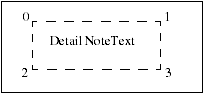
    Image
    The ordering of the points is maintained even if the notes are mirrored or are at an angle.
    The method pfcDetail.DetailNoteItem.GetModelReference returns the model referenced by the parameterized text in a note. The model is referenced based on the line number and the text index where the parameterized text appears.
    Details Notes Operations
    Methods Introduced:
    The method pfcDetail.DetailNoteItem.Draw temporarily draws a detail note item, so that it is removed during the next draft regeneration.
    The method pfcDetail.DetailNoteItem.Show displays the note item, such that it is repainted during the next draft regeneration.
    The method pfcDetail.DetailNoteItem.Erase undraws a detail note item temporarily, so that it is redrawn during the next draft regeneration.
    The method pfcDetail.DetailNoteItem.Remove undraws a detail note item permanently, so that it is not redrawn during the next draft regeneration.
    The method pfcDetail.DetailNoteItem.KeepArrowTypeAsIs allows you to keep arrow type of the leader note as it is, after a note is modified. You must call this method before the method pfcDetail.DetailNoteItem.Modify is called.
    The method pfcDetail.DetailNoteItem.Modify modifies the definition of an existing detail note item based on the instructions object that describes the new detail note item.
    Detail Groups
    A detail group in Creo Object TOOLKIT Java is represented by the interface com.ptc.pfc.pfcDetail.DetailGroupItem. It is a child of the DetailItem interface .
    The interface com.ptc.pfc.pfcDetail.DetailGroupInstructions contains information used to describe a detail group item.
    Instructions
    Method Introduced:
    The method pfcDetail.pfcDetail.DetailGroupInstructions_Create creates an instruction data object that describes how to construct a detail group for use in pfcDetail.DetailItemOwner.CreateDetailItem and pfcDetail.DetailGroupItem.Modify.
    Note
    Changes to the values of a pfcDetail.DetailGroupInstructions object do not take effect until that instructions object is used to modify the group using pfcDetail.DetailGroupItem.Modify.
    The method pfcDetail.DetailGroupInstructions.GetName returns the name of the detail group.
    The method pfcDetail.DetailGroupInstructions.SetName sets the name of the detail group.
    The method pfcDetail.DetailGroupInstructions.GetElements returns the sequence of the detail items(notes, groups and entities) contained in the group.
    The method pfcDetail.DetailGroupInstructions.SetElements sets the sequence of the detail items contained in the group.
    The method pfcDetail.DetailGroupInstructions.GetIsDisplayed returns whether the detail group is displayed in the drawing.
    The method pfcDetail.DetailGroupInstructions.SetIsDisplayed toggles the display of the detail group.
    Detail Groups Information
    Method Introduced:
    The method pfcDetail.DetailGroupItem.GetInstructions gets a data object that describes how to construct a detail group item. The method returns the data object describing the detail group item.
    Detail Groups Operations
    Methods Introduced:
    The method pfcDetail.DetailGroupItem.Draw temporarily draws a detail group item, so that it is removed during the next draft generation.
    The method pfcDetail.DetailGroupItem.Erase temporarily undraws a detail group item, so that it is redrawn during the next draft generation.
    The method pfcDetail.DetailGroupItem.Modify changes the definition of a detail group item based on the data object that describes how to construct a detail group item.
    Detail Symbols
    Detail Symbol Definitions
    A detail symbol definition in Creo Object TOOLKIT Java is represented by the interfacepfcDetail.DetailSymbolDefItem. It is a child of the DetailItem interface.
    The interfacepfcDetail.DetailSymbolDefInstructions contains information that describes a symbol definition. It can be used when creating symbol definition entities or while accessing existing symbol definition entities.
    Instructions
    Methods Introduced:
    The method pfcDetail.pfcDetail.DetailSymbolDefInstructions_Create creates an instruction data object that describes how to create a symbol definition based on the path and name of the symbol definition. The instructions object is passed to the methods pfcDetailItemOwner.CreateDetailItem and pfcDetailSymbolDefItem.Modify.
    Note
    Changes to the values of a pfcDetail.DetailSymbolDefInstructions object do not take effect until that instructions object is used to modify the definition using the method pfcDetail.DetailSymbolDefItem.Modify.
    The method pfcDetail.DetailSymbolDefInstructions.GetSymbolHeight returns the value of the height type for the symbol definition. The symbol definition height options are as follows:
    •  SYMDEF_FIXED—Symbol height is fixed.
    •  SYMDEF_VARIABLE—Symbol height is variable.
    •  SYMDEF_RELATIVE_TO_TEXT—Symbol height is determined relative to the text height.
    The method pfcDetail.DetailSymbolDefInstructions.SetSymbolHeight sets the value of the height type for the symbol definition.
    The method pfcDetail.DetailSymbolDefInstructions.GetHasElbow determines whether the symbol definition includes an elbow.
    The method pfcDetail.DetailSymbolDefInstructions.SetHasElbow decides if the symbol definition should include an elbow.
    The method pfcDetail.DetailSymbolDefInstructions.GetIsTextAngleFixed returns whether the text of the angle is fixed.
    The method pfcDetail.DetailSymbolDefInstructions.SetIsTextAngleFixed toggles the requirement that the text angle be fixed.
    The method pfcDetail.DetailSymbolDefInstructions.GetScaledHeight returns the height of the symbol definition in inches.
    The method pfcDetail.DetailSymbolDefInstructions.GetAttachments returns the value of the sequence of the possible instance attachment points for the symbol definition.
    The method pfcDetail.DetailSymbolDefInstructions.SetAttachments sets the value of the sequence of the possible instance attachment points for the symbol definition.
    The method pfcDetail.DetailSymbolDefInstructions.GetFullPath returns the value of the complete path of the symbol definition file.
    The method pfcDetail.DetailSymbolDefInstructions.SetFullPath sets the value of the complete path of the symbol definition path.
    The method pfcDetail.DetailSymbolDefInstructions.GetReference returns the text reference information for the symbol definition. It returns a null value if the text reference is not used. The text reference identifies the text item used for a symbol definition which has a height type of SYMDEF_TEXT_RELATED.
    The method pfcDetail.DetailSymbolDefInstructions.SetReference sets the text reference information for the symbol definition.
    Detail Symbol Definitions Information
    Methods Introduced:
    The method pfcDetail.DetailSymbolDefItem.ListDetailItems lists the detail items in the symbol definition based on the type of the detail item.
    The method pfcDetail.DetailSymbolDefItem.GetInstructions returns an instruction data object that describes how to construct the symbol definition.
    Detail Symbol Definitions Operations
    Methods Introduced:
    The method pfcDetail.DetailSymbolDefItem.CreateDetailItem creates a detail item in the symbol definition based on the instructions data object. The method returns the detail item in the symbol definition.
    The method pfcDetail.DetailSymbolDefItem.Modify modifies a symbol definition based on the instructions data object that contains information about the modifications to be made to the symbol definition.
    Retrieving Symbol Definitions
    Methods Introduced:
    From Creo 4.0 F000 onwards, the method pfcDetail.DetailItemOwner.RetrieveSymbolDefinition has been deprecated. Use the method pfcDetail.DetailItemOwner.RetrieveSymbolDefItem instead.
    Creo Parametric symbols exist in two different areas: the user-defined area and the system symbols area.
    The method pfcDetail.DetailItemOwner.RetrieveSymbolDefItem retrieves a symbol definition from the user-defined location designated by the configuration option pro_symbol_dir. The symbol definition should have been previously saved to a file using Creo Parametric.
    The method pfcDetail.DetailItemOwner.RetrieveSymbolDefItem also retrieves a symbol definition from the system directory. The system area contains symbols provided by Creo Parametric with the Detail module (such as the Welding Symbols Library).
    The input parameters of this method are:
    •  FileName—Name of the symbol definition file
    •  Source—Source of the symbol definition file. The input parameter Source is defined by the enumerated type pfcDetail.DetailSymbolDefItemSource. The valid values which are supported are listed below:
      DTLSYMDEF_SRC_SYSTEM—Specifies the system symbol definition directory.
      DTLSYMDEF_SRC_PATH—Specifies the absolute path to a directory containing the symbol definition.
    •  FilePath—Path to the symbol definition file. It is relative to the path specified by the option "pro_symbol_dir" in the configuration file. A null value indicates that the function should search the current directory.
    •  Version—Numerical version of the symbol definition file. A null value retrieves the latest version.
    •  UpdateUnconditionally—True if Creo should update existing instances of this symbol definition, or false to quit the operation if the definition exists in the model.
    The method returns the retrieved symbol definition.
    Detail Symbol Instances
    A detail symbol instance in Creo Object TOOLKIT Java is represented by the interfacepfcDetail.DetailSymbolInstItem. It is a child of the DetailItem interface .
    The interfaceDetail.DetailSymbolInstInstructions contains information that describes a symbol instance. It can be used when creating symbol instances and while accessing existing groups.
    Instructions
    Methods Introduced:
    The method pfcDetail.pfcDetail.DetailSymbolInstInstructions_Create creates a data object that contains information about the placement of a symbol instance.
    Note
    Changes to the values of a pfcDetail.DetailSymbolInstInstructions object do not take effect until that instructions object is used to modify the instance using pfcDetail.DetailSymbolInstItem.Modify.
    The method pfcDetail.DetailSymbolInstInstructions.GetIsDisplayed returns a value that specifies whether the instance of the symbol is displayed.
    Use the method pfcDetail.DetailSymbolInstInstructions.SetIsDisplayed to switch the display of the symbol instance.
    The method pfcDetail.DetailSymbolInstInstructions.GetColor returns the color of the detail symbol instance. A null value indicates that the default drawing color is used.
    The method pfcDetail.DetailSymbolInstInstructions.SetColor sets the color of the detail symbol instance. Pass null to use the default drawing color.
    The method pfcDetail.DetailSymbolInstInstructions.GetSymbolDef returns the symbol definition used for the instance.
    The method pfcDetail.DetailSymbolInstInstructions.SetSymbolDef sets the value of the symbol definition used for the instance.
    The method pfcDetail.DetailSymbolInstInstructions.GetAttachOnDefType returns the attachment type of the instance. The method returns a null value if the attachment represents a free attachment. The attachment options are as follows:
    •  SYMDEFATTACH_FREE—Attachment on a free point.
    •  SYMDEFATTACH_LEFT_LEADER—Attachment via a leader on the left side of the symbol.
    •  SYMDEFATTACH_RIGHT_LEADER— Attachment via a leader on the right side of the symbol.
    •  SYMDEFATTACH_RADIAL_LEADER—Attachment via a leader at a radial location.
    •  SYMDEFATTACH_ON_ITEM—Attachment on an item in the symbol definition.
    •  SYMDEFATTACH_NORMAL_TO_ITEM—Attachment normal to an item in the symbol definition.
    The method pfcDetail.DetailSymbolInstInstructions.SetAttachOnDefType sets the attachment type of the instance.
    The method pfcDetail.DetailSymbolInstInstructions.GetDefAttachment returns the value that represents the way in which the instance is attached to the symbol definition.
    The method pfcDetail.DetailSymbolInstInstructions.SetDefAttachment specifies the way in which the instance is attached to the symbol definition.
    The method pfcDetail.DetailSymbolInstInstructions.GetInstAttachment returns the value of the attachment of the instance that includes location and leader information.
    The method pfcDetail.DetailSymbolInstInstructions.SetInstAttachment sets value of the attachment of the instance.
    The method pfcDetail.DetailSymbolInstInstructions.GetAngle returns the value of the angle at which the instance is placed. The method returns a null value if the value of the angle is 0 degrees.
    The method pfcDetail.DetailSymbolInstInstructions.SetAngle sets the value of the angle at which the instance is placed.
    The method pfcDetail.DetailSymbolInstInstructions.GetScaledHeight returns the height of the symbol instance in the owner drawing or model coordinates. This value is consistent with the height value shown for a symbol instance in the Creo user interface.
    Note
    The scaled height obtained using the above method is partially based on the properties of the symbol definition assigned using the method pfcDetail.DetailSymbolInstInstructions.GetSymbolDef. Changing the symbol definition may change the calculated value for the scaled height.
    The method pfcDetail.DetailSymbolInstInstructions.SetScaledHeight sets the value of the height of the symbol instance in the owner drawing or model coordinates.
    The method pfcDetail.DetailSymbolInstInstructions.GetTextValues returns the sequence of variant text values used while placing the symbol instance.
    The method pfcDetail.DetailSymbolInstInstructions.SetTextValues sets the sequence of variant text values while placing the symbol instance.
    The method pfcDetail.DetailSymbolInstInstructions.GetCurrentTransform returns the coordinate transformation matrix to place the symbol instance.
    The method pfcDetail.DetailSymbolInstInstructions.SetGroups sets the DetailSymbolGroupOption argument for displaying symbol groups in the symbol instance. This argument can have the following:
    •  DETAIL_SYMBOL_GROUP_INTERACTIVE—Symbol groups are interactively selected for display. This is the default value in the GRAPHICS mode.
    •  DETAIL_SYMBOL_GROUP_ALL—All non-exclusive symbol groups are included for display.
    •  DETAIL_SYMBOL_GROUP_NONE—None of the non-exclusive symbol groups are included for display.
    •  DETAIL_SYMBOL_GROUP_CUSTOM—Symbol groups specified by the application are displayed.
    Refer to the section Detail Symbol Groups for more information on detail symbol groups.
    Detail Symbol Instances Information
    Method Introduced:
    The method pfcDetail.DetailSymbolInstItem.GetInstructions returns an instructions data object that describes how to construct a symbol instance. This method takes a ProBoolean argument, GiveParametersAsNames, which determines whether symbolic representations of parameters and drawing properties in the symbol instance should be displayed, or the actual text seen by the user should be displayed.
    Detail Symbol Instances Operations
    Methods Introduced:
    The method pfcDetail.DetailSymbolInstItem.Draw draws a symbol instance temporarily to be removed on the next draft regeneration.
    The method pfcDetail.DetailSymbolInstItem.Erase undraws a symbol instance temporarily from the display to be redrawn on the next draft generation.
    The method pfcDetail.DetailSymbolInstItem.Show displays a symbol instance to be repainted on the next draft regeneration.
    The method pfcDetail.DetailSymbolInstItem.Remove deletes a symbol instance permanently.
    The method pfcDetail.DetailSymbolInstItem.Modify modifies a symbol instance based on the instructions data object that contains information about the modifications to be made to the symbol instance.
    Detail Symbol Groups
    A detail symbol group in Creo Object TOOLKIT Java is represented by the interfacepfcDetail.DetailSymbolGroup. It is a child of the pfcObject.Object interface. A detail symbol group is accessible only as a part of the contents of a detail symbol definition or instance.
    The interface pfcDetail.DetailSymbolGroupInstructions contains information that describes a symbol group. It can be used when creating new symbol groups, or while accessing or modifying existing groups.
    Instructions
    Methods Introduced:
    The method pfcDetail.pfcDetail.DetailSymbolGroupInstructions_Create creates the pfcDetail.DetailSymbolGroupInstructions data object that stores the name of the symbol group and the list of detail items to be included in the symbol group.
    Note
    Changes to the values of the pfcDetail.DetailSymbolGroupInstructions data object do not take effect until this object is used to modify the instance using the method pfcDetail.DetailSymbolGroup.Modify.
    The method pfcDetail.DetailSymbolGroupInstructions.GetItems returns the list of detail items included in the symbol group.
    The method pfcDetail.DetailSymbolGroupInstructions.SetItems sets the list of detail items to be included in the symbol group.
    The method pfcDetail.DetailSymbolGroupInstructions.GetName returns the name of the symbol group.
    The method pfcDetail.DetailSymbolGroupInstructions.SetName assigns the name of the symbol group.
    Detail Symbol Group Information
    Methods Introduced:
    The method pfcDetail.DetailSymbolGroup.GetInstructions returns the pfcDetail.DetailSymbolGroupInstructions data object that describes how to construct a symbol group.
    The method pfcDetail.DetailSymbolGroup.GetParentGroup returns the parent symbol group to which a given symbol group belongs.
    The method pfcDetail.DetailSymbolGroup.GetParentDefinition returns the symbol definition of a given symbol group.
    The method pfcDetail.DetailSymbolGroup.ListChildren lists the subgroups of a given symbol group.
    The method pfcDetail.DetailSymbolDefItem.ListSubgroups lists the subgroups of a given symbol group stored in the symbol definition at the indicated level.
    The method pfcDetail.DetailSymbolDefItem.IsSubgroupLevelExclusive identifies if the subgroups of a given symbol group stored in the symbol definition at the indicated level are exclusive or independent. If groups are exclusive, only one of the groups at this level can be active in the model at any time. If groups are independent, any number of groups can be active.
    The method pfcDetail.DetailSymbolInstItem.ListGroups lists the symbol groups included in a symbol instance. The SymbolGroupFilter argument determines the types of symbol groups that can be listed. It takes the following values:
    •  DTLSYMINST_ALL_GROUPS—Retrieves all groups in the definition of the symbol instance.
    •  DTLSYMINST_ACTIVE_GROUPS—Retrieves only those groups that are actively shown in the symbol instance.
    •  DTLSYMINST_INACTIVE_GROUPS—Retrieves only those groups that are not shown in the symbol instance.
    Detail Symbol Group Operations
    Methods Introduced:
    The method pfcDetail.DetailSymbolGroup.Delete deletes the specified symbol group from the symbol definition. This method does not delete the entities contained in the group.
    The method pfcDetail.DetailSymbolGroup.Modify modifies the specified symbol group based on the pfcDetail.DetailSymbolGroupInstructions data object that contains information about the modifications that can be made to the symbol group.
    The method pfcDetail.DetailSymbolDefItem.CreateSubgroup creates a new subgroup in the symbol definition at the indicated level below the parent group.
    The method pfcDetail.DetailSymbolDefItem.SetSubgroupLevelExclusive makes the subgroups of a symbol group exclusive at the indicated level in the symbol definition.
    Note
    After you set the subgroups of a symbol group as exclusive, only one of the groups at the indicated level can be active in the model at any time.
    The method pfcDetail.DetailSymbolDefItem.SetSubgroupLevelIndependent makes the subgroups of a symbol group independent at the indicated level in the symbol definition.
    Note
    After you set the subgroups of a symbol group as independent, any number of groups at the indicated level can be active in the model at any time.
    Detail Attachments
    A detail attachment in Creo Object TOOLKIT Java is represented by the interfacepfcDetail.Attachment. It is used for the following tasks:
    •  The way in which a drawing note or a symbol instance is placed in a drawing.
    •  The way in which a leader on a drawing note or symbol instance is attached.
    Method Introduced:
    The method pfcDetail.Attachment.GetType returns the pfcDetail.AttachmentTypeobject containing the types of detail attachments. The detail attachment types are as follows:
    •  ATTACH_FREE—The attachment is at a free point possibly with respect to a given drawing view.
    •  ATTACH_PARAMETRIC—The attachment is to a point on a surface or an edge of a solid.
    •  ATTACH_OFFSET—The attachment is offset to another drawing view, to a model item, or to a 3D model annotation.
    •  ATTACH_TYPE_UNSUPPORTED—The attachment is to an item that cannot be represented in PFC at the current time. However, you can still retrieve the location of the attachment.
    Free Attachment
    The ATTACH_FREE detail attachment type is represented by the interface pfcDetail.FreeAttachment. It is a child of the pfcDetail.Attachment interface.
    Methods Introduced:
    The method pfcDetail.FreeAttachment.GetAttachmentPoint returns the attachment point. This location is in screen coordinates for drawing items, symbol instances and surface finishes on flat-to-screen annotation planes, and in model coordinates for symbols and surface finishes on 3D model annotation planes.
    The method pfcDetail.FreeAttachment.SetAttachmentPoint sets the attachment point.
    The method pfcDetail.FreeAttachment.GetView returns the drawing view to which the attachment is related. The attachment point is relative to the drawing view, that is the attachment point moves when the drawing view is moved. This method returns a NULL value, if the detail attachment is not related to a drawing view, but is placed at the specified location in the drawing sheet, or if the attachment is offset to a model item or to a 3D model annotation.
    The method pfcDetail.FreeAttachment.SetView sets the drawing view.
    Parametric Attachment
    The ATTACH_PARAMETRIC detail attachment type is represented by the interfacepfcDetail.ParametricAttachment. It is a child of the pfcDetail.Attachment interface.
    Methods Introduced:
    The method pfcDetail.ParametricAttachment.GetAttachedGeometry returns the pfcSelect.Selection object representing the item to which the detail attachment is attached. This includes the drawing view in which the attachment is made.
    The method pfcDetail.ParametricAttachment.SetAttachedGeometry assigns the pfcSelect.Selection object representing the item to which the detail attachment is attached. This object must include the target drawing view. The attachment will occur at the selected parameters.
    Offset Attachment
    The ATTACH_OFFSET detail attachment type is represented by the interface pfcDetail.OffsetAttachment. It is a child of the pfcDetail.Attachment interface .
    Methods Introduced:
    The method pfcDetail.OffsetAttachment.GetAttachedGeometry returns the pfcSelect.Selection object representing the item to which the detail attachment is attached. This includes the drawing view where the attachment is made, if the offset reference is in a model.
    The method pfcDetail.OffsetAttachment.SetAttachedGeometry assigns the pfcSelect.Selection object representing the item to which the detail attachment is attached. This can include the drawing view. The attachment will occur at the selected parameters.
    The method pfcDetail.OffsetAttachment.GetAttachmentPoint returns the attachment point. This location is in screen coordinates for drawing items, symbol instances and surface finishes on flat-to-screen annotation planes, and in model coordinates for symbols and surface finishes on 3D model annotation planes. The distance from the attachment point to the location of the item to which the detail attachment is attached is saved as the offset distance.
    The method pfcDetail.OffsetAttachment.SetAttachmentPoint sets the attachment point in screen coordinates.
    Unsupported Attachment
    The ATTACH_TYPE_UNSUPPORTED detail attachment type is represented by the interfacepfcDetail.UnsupportedAttachment. It is a child of the pfcDetail.Attachment interface.
    Method Introduced:
    The method pfcDetail.UnsupportedAttachment.GetAttachmentPoint returns the attachment point. This location is in screen coordinates for drawing items, symbol instances and surface finishes on flat-to-screen annotation planes, and in model coordinates for symbols and surface finishes on 3D model annotation planes.
    The method pfcDetail.UnsupportedAttachment.SetAttachmentPoint assigns the attachment point in screen coordinates.